
Search for articles


Using the Calendar View
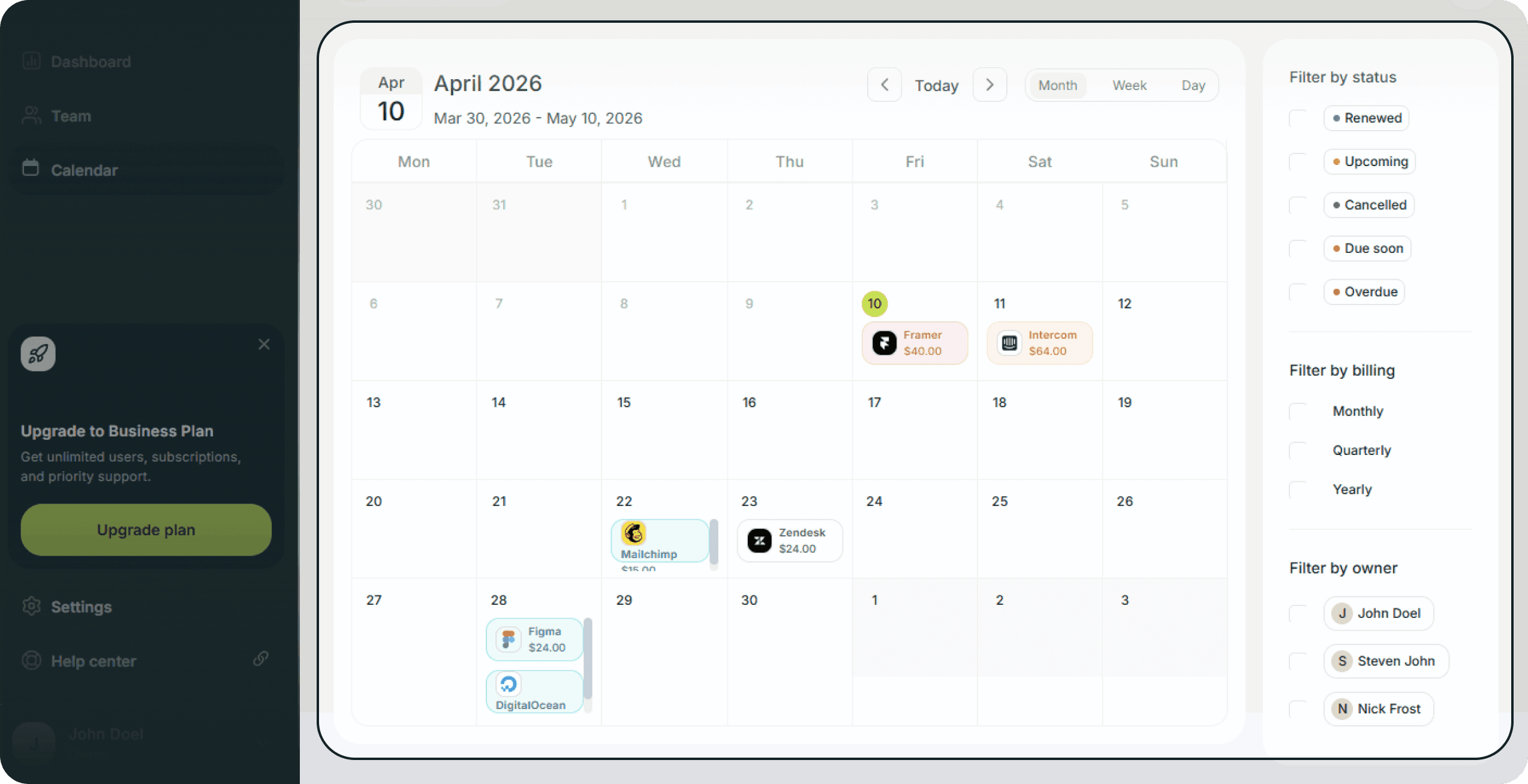
The Calendar view provides a timeline of your upcoming renewals, helping you avoid surprise charges and plan cash flow. You can switch between different timeframes and filter the view to focus on specific tools or owners.

Written by Petras Nargela
Written by Petras Nargela

Last updated on
1. Navigating the Timeline
Use the controls at the top right of the calendar grid to adjust your view:
Timeframe: Click the dropdown to switch between Month view, Week View, or Day View depending on the level of detail you need.
Navigation: Use the < and > arrows to move forward or backward in time, or click Today to jump back to the current date.
2. Filtering Your View
The sidebar on the right allows you to hide unrelated data so you can focus on what matters. You can filter the calendar events by:
Status: Toggle to see only Renewed, Upcoming, Due soon, or Overdue items.
Billing: Filter by payment frequency (e.g., Monthly vs Yearly).
Owner: Select specific team members to see only the subscriptions they manage.
3. Viewing Subscription Details
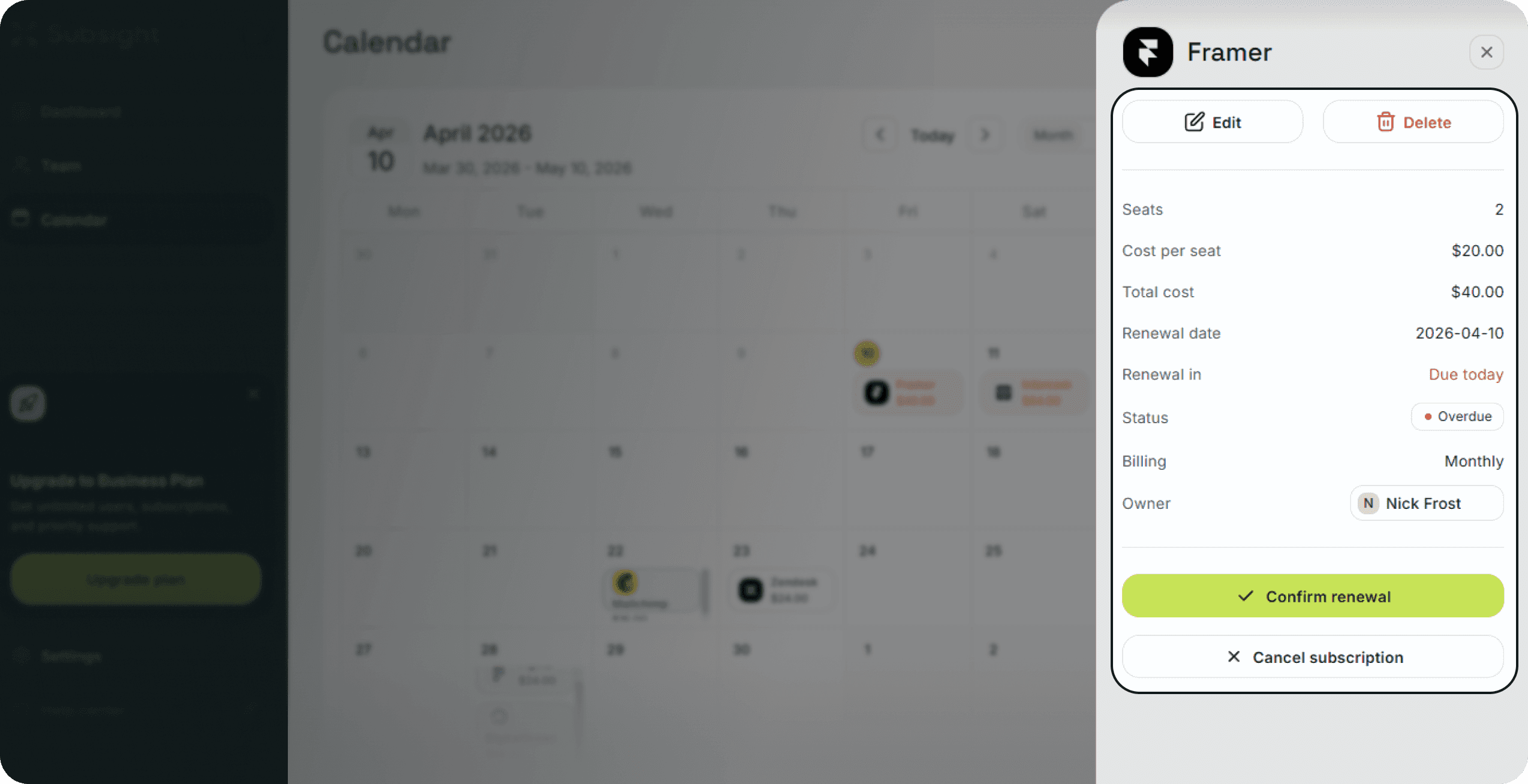
Click directly on any calendar event to open a summary card.
Quick Stats: The card displays the Total cost, Renewal date, and Owner.
Actions: From this view, you can click Edit to modify the subscription or Delete to remove it, just like on the main dashboard.
4. Adding a Subscription
If you need to track a new tool while planning, you can click the Add subscription button to open the creation modal without leaving the calendar view.
1. Navigating the Timeline
Use the controls at the top right of the calendar grid to adjust your view:
Timeframe: Click the dropdown to switch between Month view, Week View, or Day View depending on the level of detail you need.
Navigation: Use the < and > arrows to move forward or backward in time, or click Today to jump back to the current date.
2. Filtering Your View
The sidebar on the right allows you to hide unrelated data so you can focus on what matters. You can filter the calendar events by:
Status: Toggle to see only Renewed, Upcoming, Due soon, or Overdue items.
Billing: Filter by payment frequency (e.g., Monthly vs Yearly).
Owner: Select specific team members to see only the subscriptions they manage.
3. Viewing Subscription Details
Click directly on any calendar event to open a summary card.
Quick Stats: The card displays the Total cost, Renewal date, and Owner.
Actions: From this view, you can click Edit to modify the subscription or Delete to remove it, just like on the main dashboard.
4. Adding a Subscription
If you need to track a new tool while planning, you can click the Add subscription button to open the creation modal without leaving the calendar view.


