
Search for articles


Tracking Spend by Owner
While Subsight does not currently use categories for sorting, you can achieve granular reporting by tracking costs through individual ownership. This helps you identify which departments or managers are driving your software expenses.

Written by Petras Nargela
Written by Petras Nargela

Last updated on
1. High-Level Budget Attribution
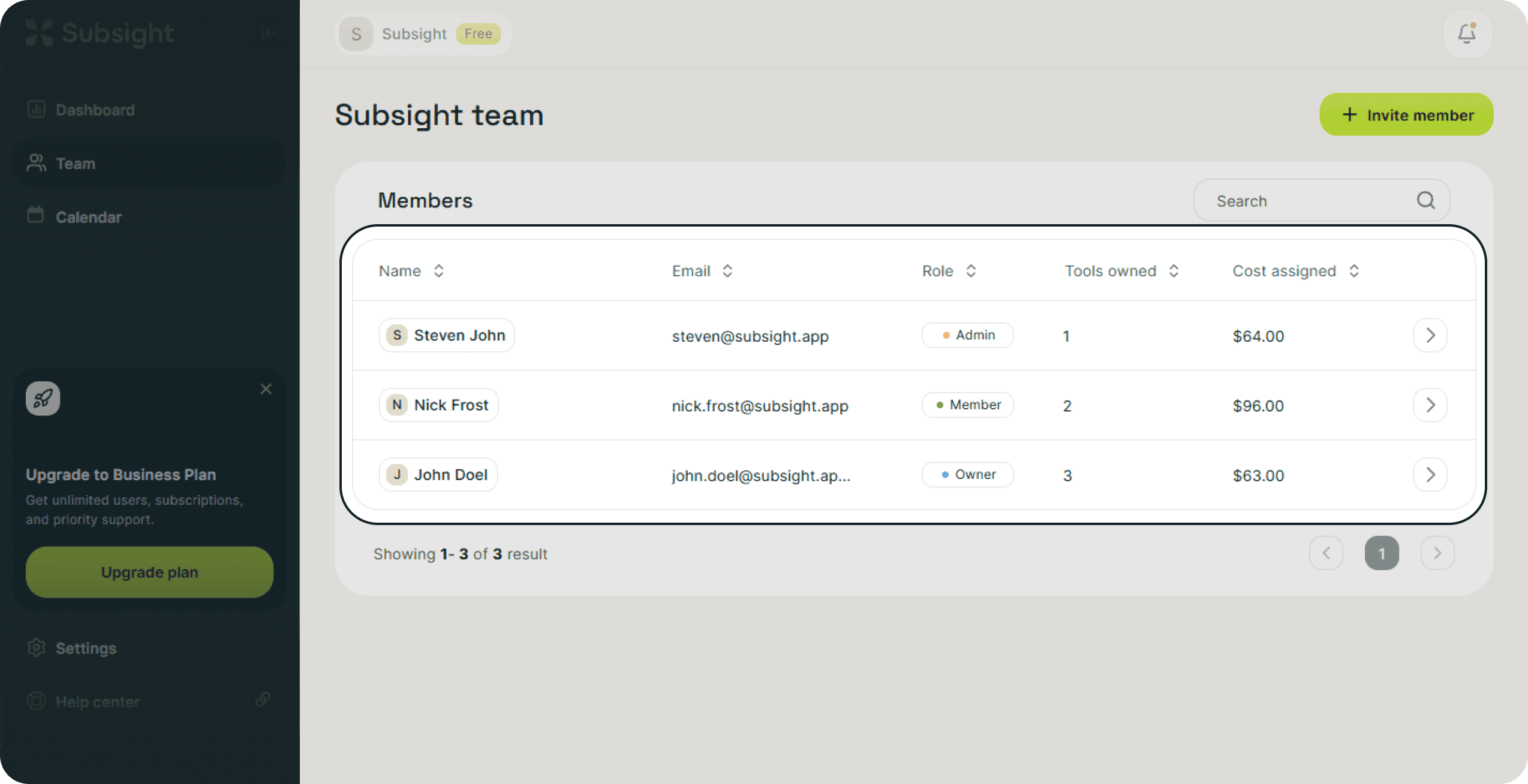
You can view a breakdown of budget responsibility directly on the Team page. The member list provides two essential financial metrics:
Tools owned: Displays the total count of subscriptions assigned to a specific person.
Cost assigned: Shows the total monthly financial value of all tools managed by that user.
2. Auditing Individual Stacks
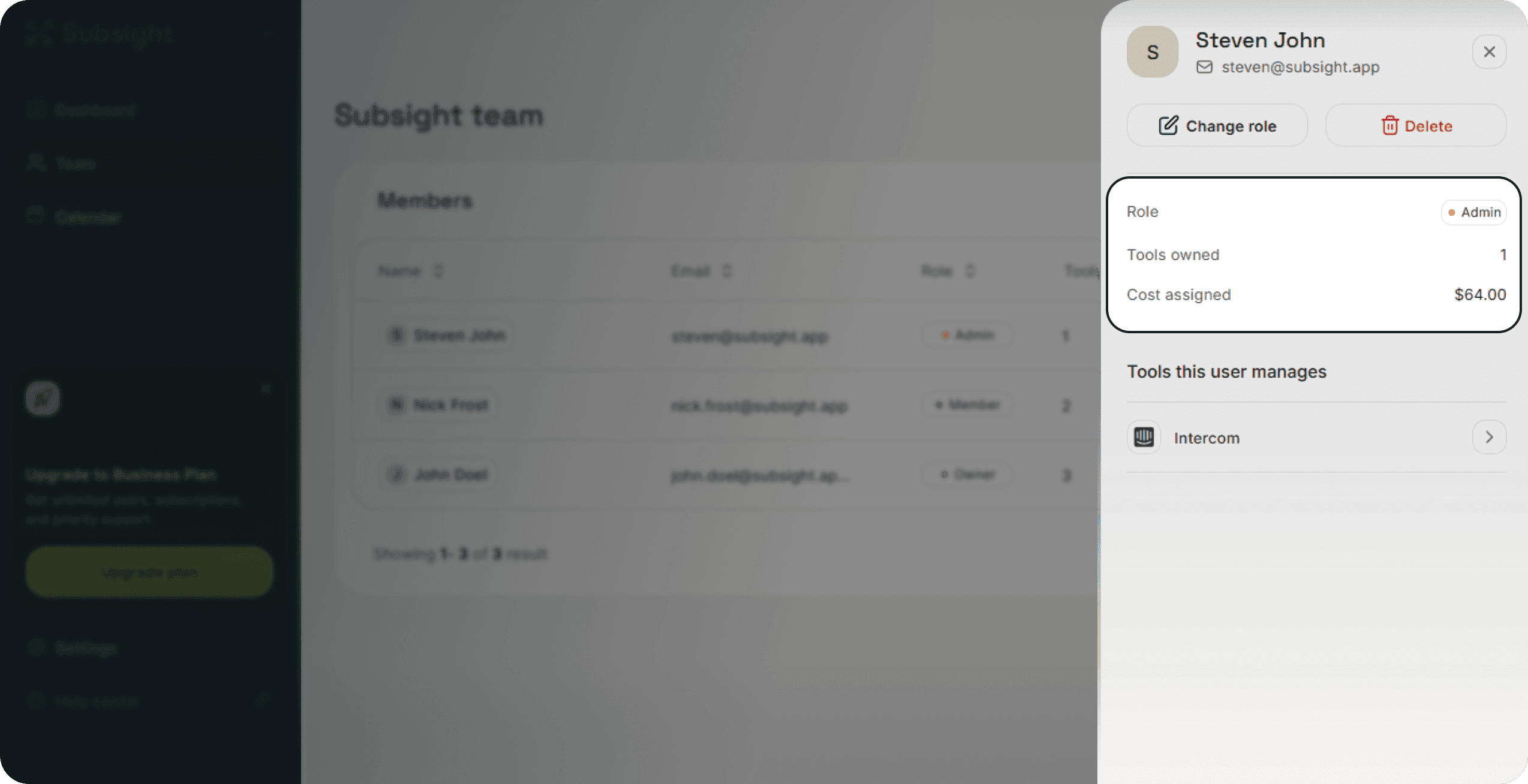
To see exactly what makes up a team member's "Cost assigned" total, click on their row to open the member details panel.
Detailed View: The top of the panel summarizes their specific Role, Tools owned, and Cost assigned.
Managed Stack: The Tools this user manages section lists every individual subscription assigned to them.
Quick Navigation: If you notice an expensive tool that needs review, click directly on the tool's row within this list to jump to that subscription's full details.
3. Reassigning Ownership
If you find that a tool is assigned incorrectly, you can shift the responsibility to keep your reporting accurate:
Open the subscription's detail view.
Click Edit at the top of the panel.
Use the Assign owner dropdown to select a different team member from your roster.
Click Save subscription to update your analytics.
1. High-Level Budget Attribution
You can view a breakdown of budget responsibility directly on the Team page. The member list provides two essential financial metrics:
Tools owned: Displays the total count of subscriptions assigned to a specific person.
Cost assigned: Shows the total monthly financial value of all tools managed by that user.
2. Auditing Individual Stacks
To see exactly what makes up a team member's "Cost assigned" total, click on their row to open the member details panel.
Detailed View: The top of the panel summarizes their specific Role, Tools owned, and Cost assigned.
Managed Stack: The Tools this user manages section lists every individual subscription assigned to them.
Quick Navigation: If you notice an expensive tool that needs review, click directly on the tool's row within this list to jump to that subscription's full details.
3. Reassigning Ownership
If you find that a tool is assigned incorrectly, you can shift the responsibility to keep your reporting accurate:
Open the subscription's detail view.
Click Edit at the top of the panel.
Use the Assign owner dropdown to select a different team member from your roster.
Click Save subscription to update your analytics.


