
Search for articles


Creating Your Account
Welcome to Subsight! Setting up your account takes less than 2 minutes. Follow this guide to configure your workspace correctly from day one.

Written by Petras Nargela
Written by Petras Nargela

Last updated on
1. Sign Up
Head to the sign-up page. You have two options to create your account:
Google OAuth: Click Continue with Google for one-click access.
Email & Password: Enter your work email and create a secure password, then click Create account.
2. Set Up Your Profile
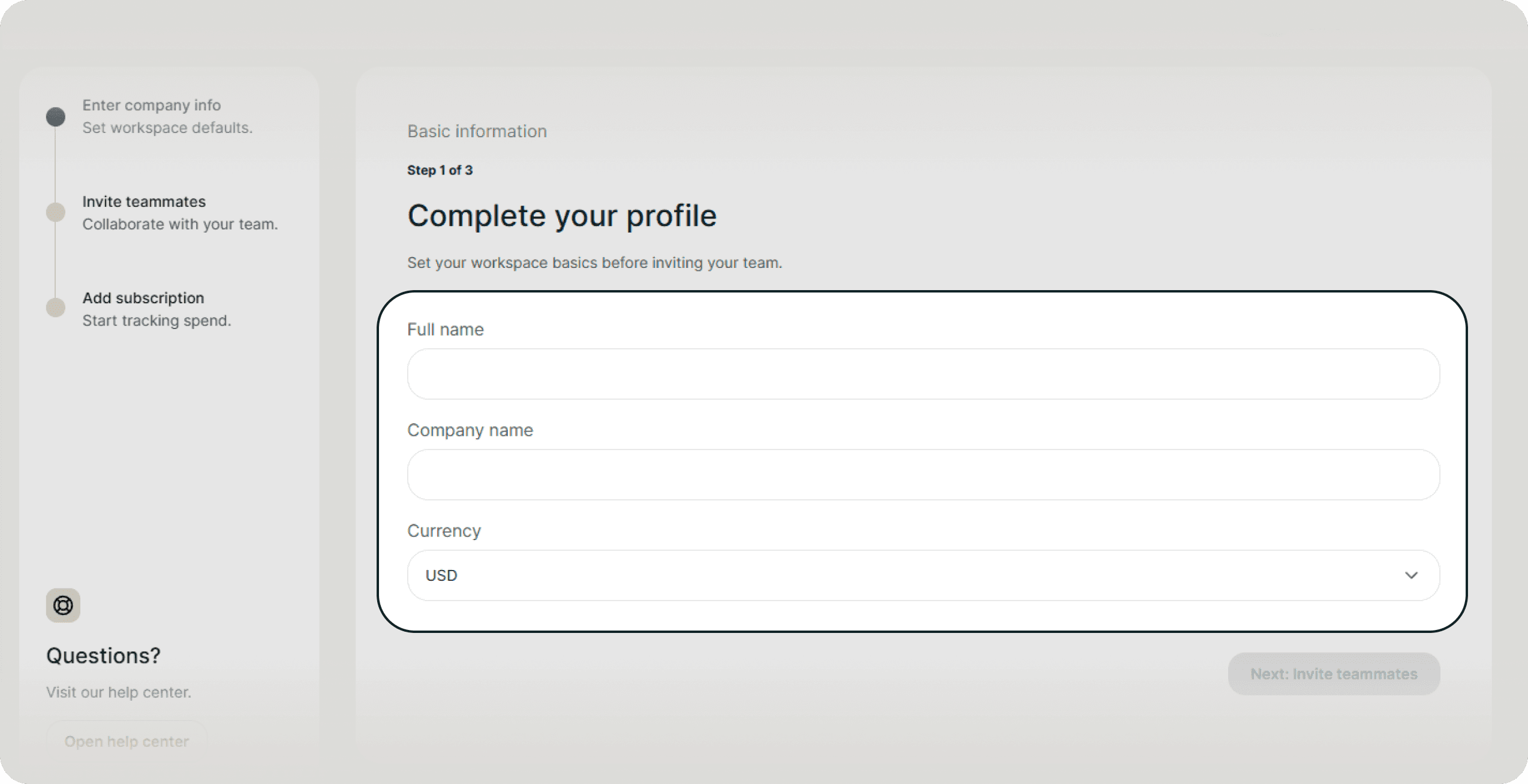
Once logged in, you will enter the workspace setup wizard.
Full Name: Enter your name as you want it to appear to your team.
Company Name: This will be the name of your workspace.
Currency: Select your primary operating currency (e.g., USD, EUR, GBP).
Note: This determines how all your analytics and reports are calculated. Subsight will automatically convert foreign transactions into this base currency.
Don't worry if you aren't sure. You can always change this later in your Settings.
Click Next: Invite teammates to continue.
3. Invite Your Team (Optional)
If you are managing subscriptions with others, invite them now to collaborate immediately.
Email: Enter their work email address.
Role: Select the appropriate permission level:
Owner: Has full access and can manage billing.
Admin: Has full access to workspace features.
Member: Can view and edit tools assigned to them.
Add Another: Click this to invite multiple people at once.
Tip: You can skip this step and invite users later via the Team settings page.
4. Choose Your Import Method
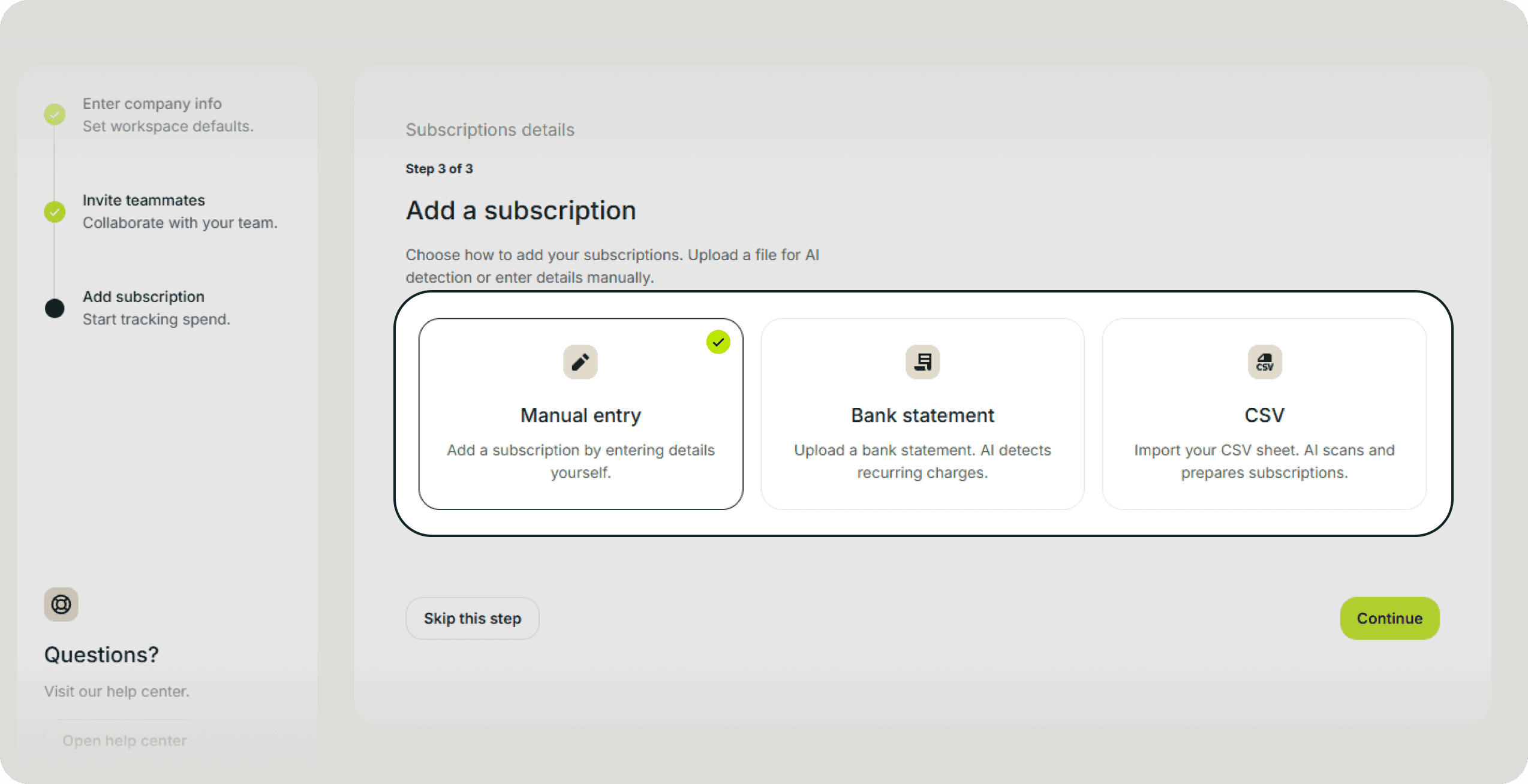
Subsight offers three ways to get your data into the dashboard:
Manual Entry: Best for adding just a few core tools.
Bank Statement: Upload a PDF or CSV statement from any bank. Our AI will automatically detect your recurring charges.
CSV Import: Best for migrating data from any spreadsheet or software that supports CSV export (Ex. Google Sheets, Microsoft Excel).
Select your preferred method and click Continue.
5. Review & Launch
If you added subscriptions during the previous step, you will see a summary screen where you can verify the Cost, Seat Count, and Owner for each tool.
Click Add to workspace, and Subsight will finalize your dashboard. You are now ready to start tracking!
1. Sign Up
Head to the sign-up page. You have two options to create your account:
Google OAuth: Click Continue with Google for one-click access.
Email & Password: Enter your work email and create a secure password, then click Create account.
2. Set Up Your Profile
Once logged in, you will enter the workspace setup wizard.
Full Name: Enter your name as you want it to appear to your team.
Company Name: This will be the name of your workspace.
Currency: Select your primary operating currency (e.g., USD, EUR, GBP).
Note: This determines how all your analytics and reports are calculated. Subsight will automatically convert foreign transactions into this base currency.
Don't worry if you aren't sure. You can always change this later in your Settings.
Click Next: Invite teammates to continue.
3. Invite Your Team (Optional)
If you are managing subscriptions with others, invite them now to collaborate immediately.
Email: Enter their work email address.
Role: Select the appropriate permission level:
Owner: Has full access and can manage billing.
Admin: Has full access to workspace features.
Member: Can view and edit tools assigned to them.
Add Another: Click this to invite multiple people at once.
Tip: You can skip this step and invite users later via the Team settings page.
4. Choose Your Import Method
Subsight offers three ways to get your data into the dashboard:
Manual Entry: Best for adding just a few core tools.
Bank Statement: Upload a PDF or CSV statement from any bank. Our AI will automatically detect your recurring charges.
CSV Import: Best for migrating data from any spreadsheet or software that supports CSV export (Ex. Google Sheets, Microsoft Excel).
Select your preferred method and click Continue.
5. Review & Launch
If you added subscriptions during the previous step, you will see a summary screen where you can verify the Cost, Seat Count, and Owner for each tool.
Click Add to workspace, and Subsight will finalize your dashboard. You are now ready to start tracking!

