
Search for articles


Importing From CSV / Spreadsheets
If you already track your tools in a spreadsheet, you can migrate everything to Subsight at once using our CSV importer.

Written by Petras Nargela
Written by Petras Nargela

Last updated on
1. Select Import Method
Navigate to the Add subscription screen and select the CSV option.
2. Upload Your Data
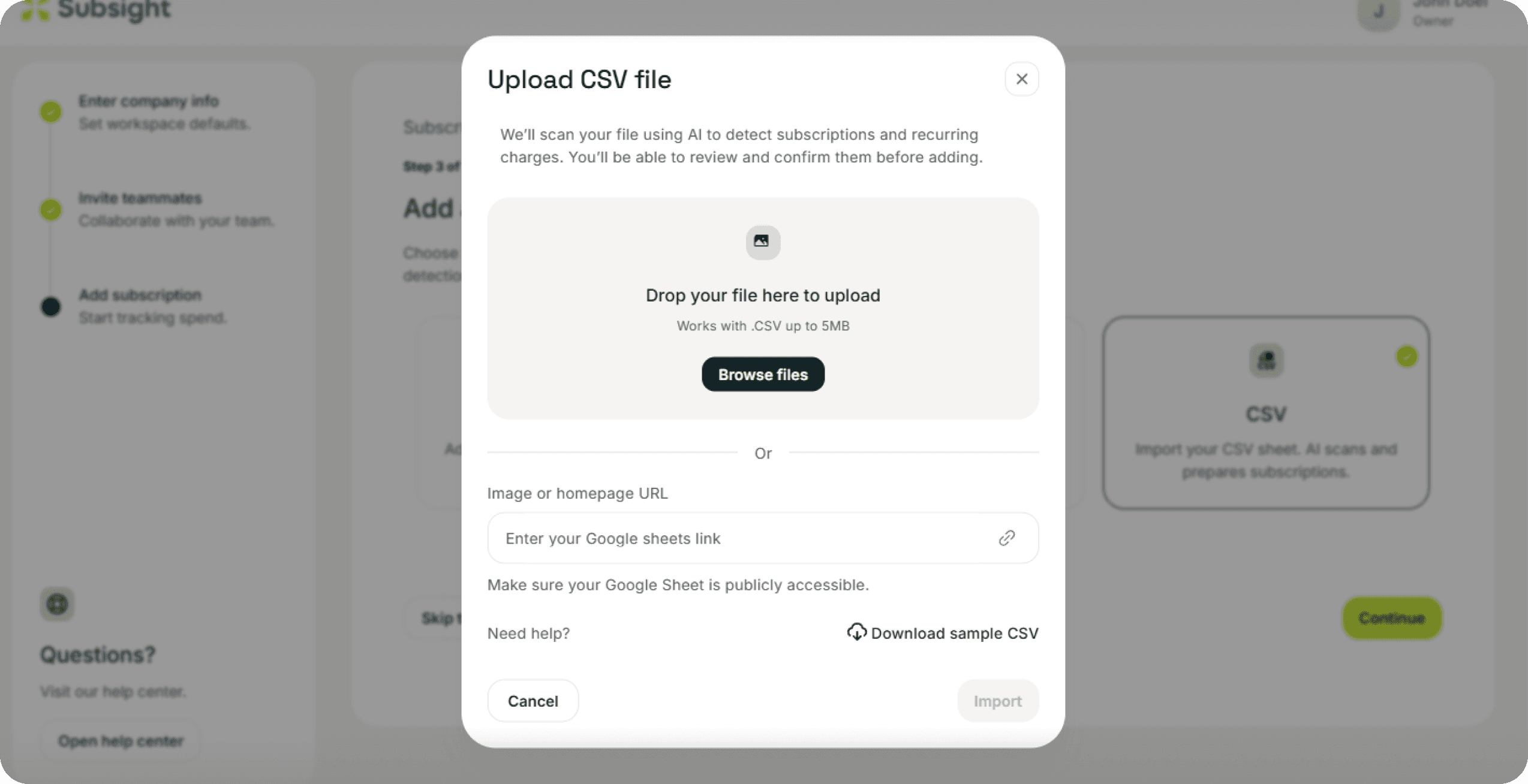
You will see the upload modal with two ways to import your data:
Option A (File Upload): Drag and drop your .CSV file into the upload box.
Limit: Files up to 5MB.
Option B (Google Sheets): Paste the link to your Google Sheet in the input field.
Requirement: Ensure your Google Sheet is set to "Publicly accessible" so our AI can read it.
Need a template? If you aren't sure how to format your file, click Download sample CSV inside the modal to get a pre-formatted template.
Click Start scanning to proceed.
3. Review Detected Subscriptions
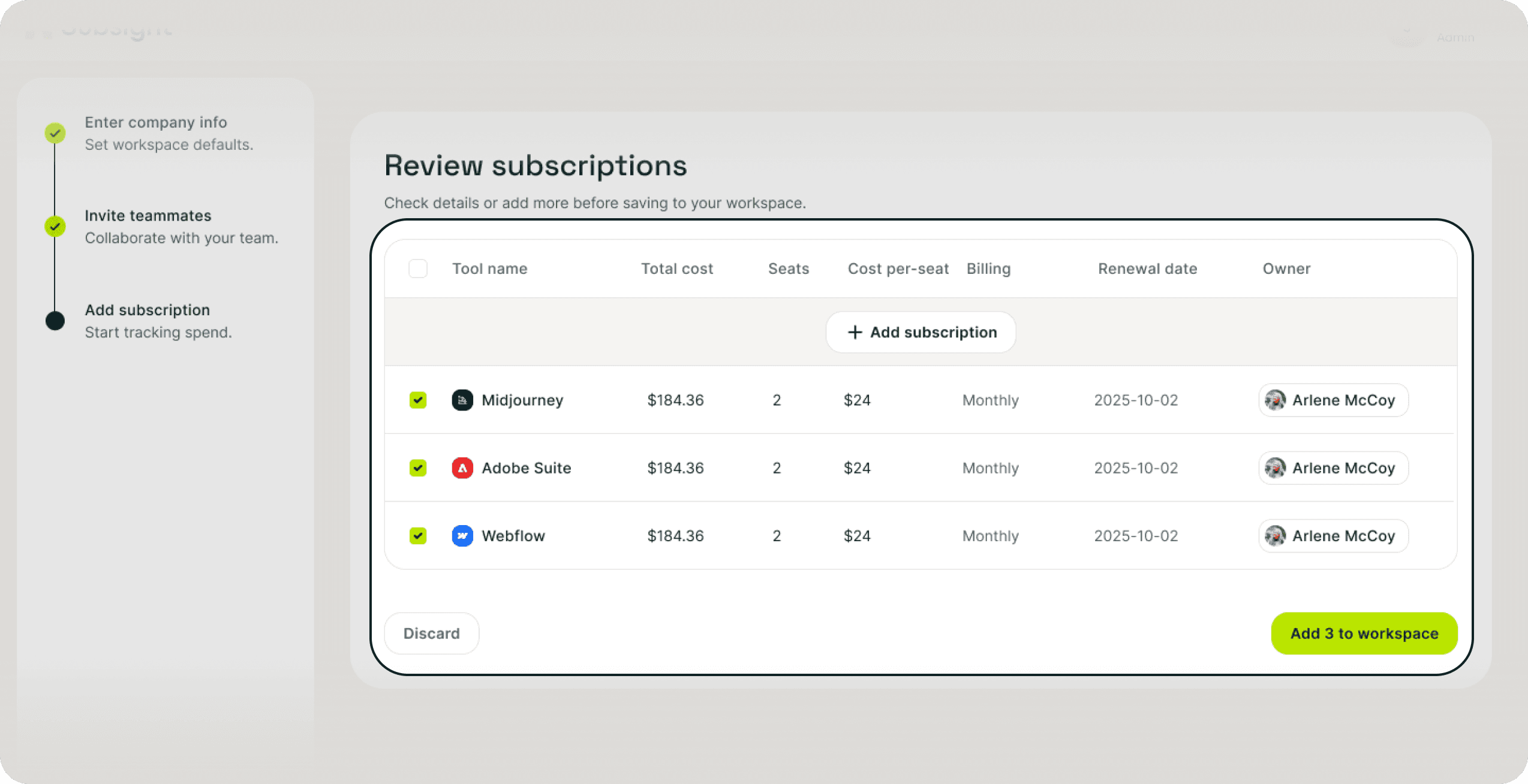
Our AI will scan the file and present a list of detected tools.
Verify Details: Check that the Tool name, Total cost, and Billing frequency were imported correctly.
Assign Ownership: Select the correct Owner for each tool.
Check Seat Counts: Ensure the number of seats is accurate. Subsight automatically calculates the Cost per-seat based on these numbers.
4. Add to Workspace
Once you have verified the data, click Add to workspace to finish.
1. Select Import Method
Navigate to the Add subscription screen and select the CSV option.
2. Upload Your Data
You will see the upload modal with two ways to import your data:
Option A (File Upload): Drag and drop your .CSV file into the upload box.
Limit: Files up to 5MB.
Option B (Google Sheets): Paste the link to your Google Sheet in the input field.
Requirement: Ensure your Google Sheet is set to "Publicly accessible" so our AI can read it.
Need a template? If you aren't sure how to format your file, click Download sample CSV inside the modal to get a pre-formatted template.
Click Start scanning to proceed.
3. Review Detected Subscriptions
Our AI will scan the file and present a list of detected tools.
Verify Details: Check that the Tool name, Total cost, and Billing frequency were imported correctly.
Assign Ownership: Select the correct Owner for each tool.
Check Seat Counts: Ensure the number of seats is accurate. Subsight automatically calculates the Cost per-seat based on these numbers.
4. Add to Workspace
Once you have verified the data, click Add to workspace to finish.


