
Search for articles


Adding a Subscription Manually
For tools that are not found on your bank statements or for quick one-off additions, you can enter subscription details manually.

Written by Petras Nargela
Written by Petras Nargela

Last updated on
1. Select Import Method
Navigate to the Add subscription screen. Select Manual entry from the available options and click Continue.
2. Enter Subscription Details
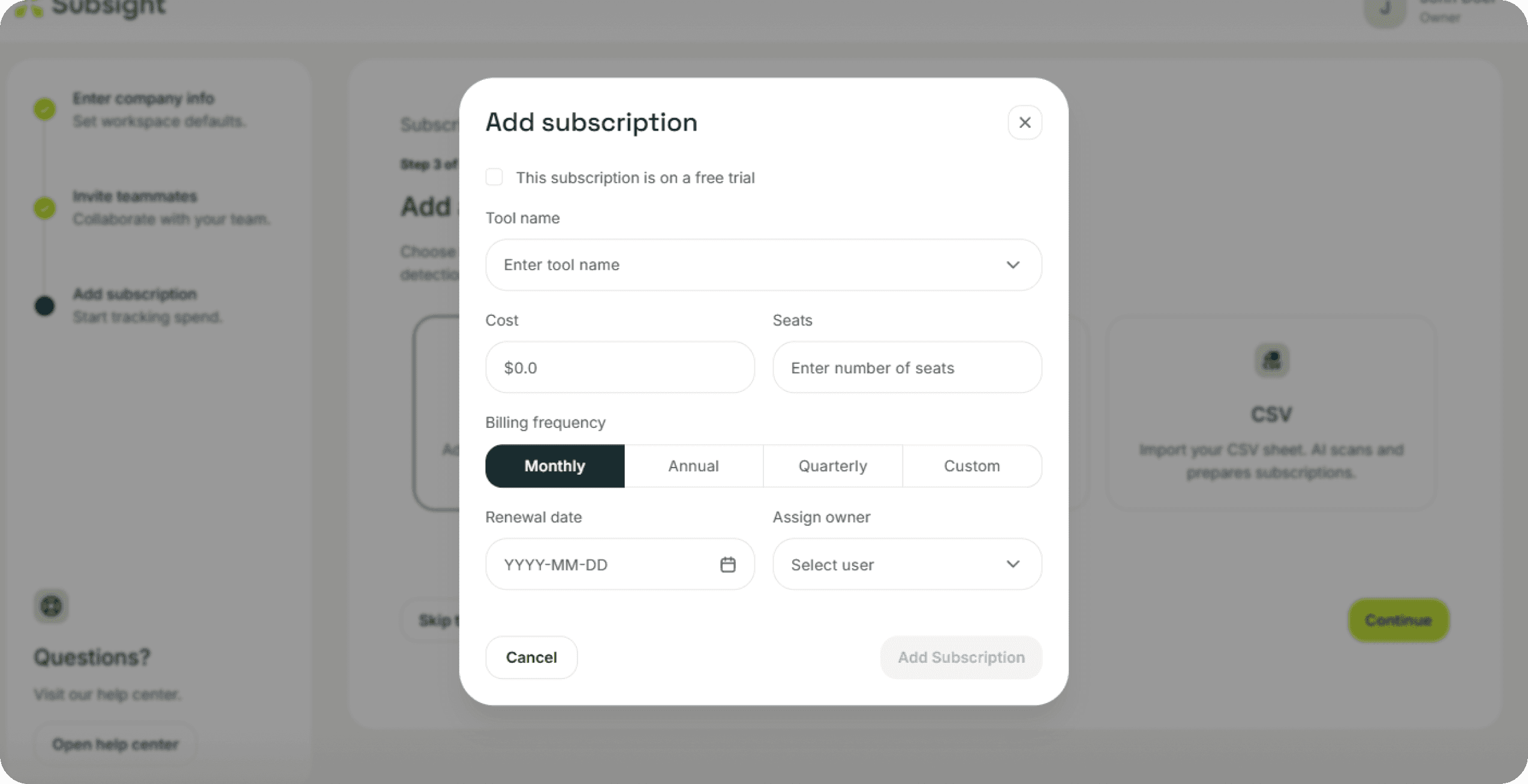
A modal will appear for you to provide the following information:
Tool name: Enter the name of the service or software.
Cost: Enter the total price you pay for the subscription.
Seats: Enter the number of users or licenses included.
Billing frequency: Select Monthly, Quarterly, Yearly, or Custom.
Renewal date: Use the calendar to pick the date of your next scheduled payment.
Assign owner: Select the specific team member responsible for this tool.
Click Add subscription once all fields are filled.
3. Review Your Entry
You will be taken to a summary screen to verify the information before it is saved to your workspace.
Data Check: Review the Tool name, Total cost, and Renewal date.
Automated Calculation: Note that the Cost per-seat is calculated automatically based on the total cost and seat count you provided.
Ownership: Confirm that the correct Owner is assigned to the tool.
4. Add to Workspace
Click the Add to workspace button to finalize the process. Subsight will then prepare your dashboard and include the new subscription in your analytics.
1. Select Import Method
Navigate to the Add subscription screen. Select Manual entry from the available options and click Continue.
2. Enter Subscription Details
A modal will appear for you to provide the following information:
Tool name: Enter the name of the service or software.
Cost: Enter the total price you pay for the subscription.
Seats: Enter the number of users or licenses included.
Billing frequency: Select Monthly, Quarterly, Yearly, or Custom.
Renewal date: Use the calendar to pick the date of your next scheduled payment.
Assign owner: Select the specific team member responsible for this tool.
Click Add subscription once all fields are filled.
3. Review Your Entry
You will be taken to a summary screen to verify the information before it is saved to your workspace.
Data Check: Review the Tool name, Total cost, and Renewal date.
Automated Calculation: Note that the Cost per-seat is calculated automatically based on the total cost and seat count you provided.
Ownership: Confirm that the correct Owner is assigned to the tool.
4. Add to Workspace
Click the Add to workspace button to finalize the process. Subsight will then prepare your dashboard and include the new subscription in your analytics.


