
Search for articles


Dashboard Overview
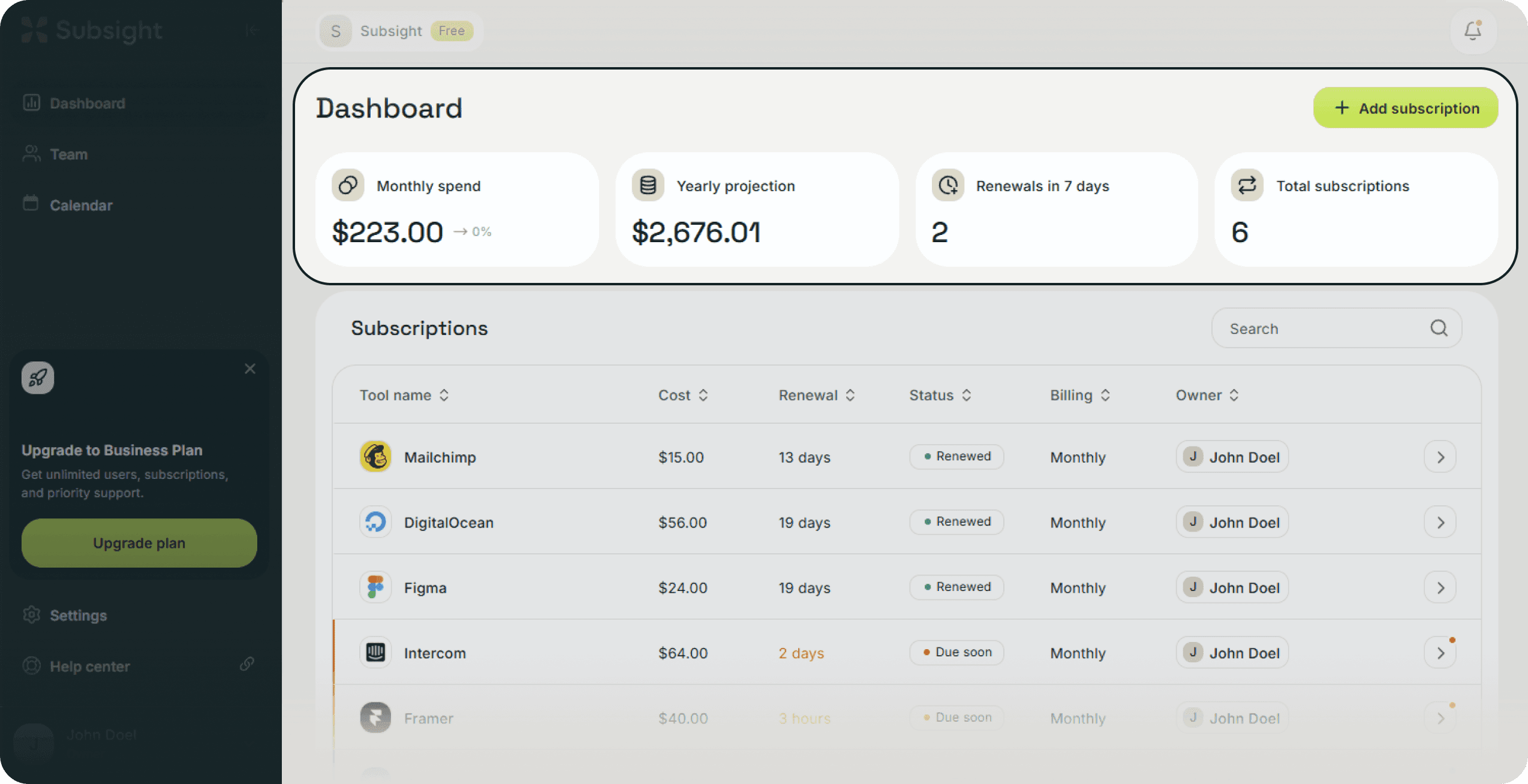
The Dashboard is your central hub for tracking software spend and managing tool accountability. It provides a real-time summary of your financial data and subscription statuses.

Written by Petras Nargela
Written by Petras Nargela

Last updated on
1. Header Actions
Located at the top right of your dashboard, this is your primary way to add data.
Add subscription: Click the green button to track a new tool manually or via bank upload.
2. Key Performance Stats
At the top of your dashboard, you will find four primary metrics that summarize your workspace activity:
Monthly spend: Your current recurring costs for the month.
Yearly spend: Your total projected annual subscription costs.
Renewals next 7 days: The number of subscriptions scheduled for renewal within the next week.
Total subscriptions: The total count of active tools tracked in your workspace.
3. Sidebar Navigation
Use the sidebar to move between different functional areas of Subsight:
Dashboard: Returns you to your main subscription list and stats.
Team: Manage team members, roles, and tool assignments.
Calendar: View your upcoming renewals in a visual monthly layout.
Settings: Access your Account, Notifications, Billing, and Integrations.
4. The Subscription Table
This list provides a detailed breakdown of every tool in your stack:
Status Tags: Quickly identify the state of a tool with color-coded labels such as Renewed, Upcoming, Overdue, or Cancelled.
Renewal: Shows the number of days remaining until the next payment is due.
Owner: Displays which team member is responsible for managing that specific tool.
Search: Use the search bar to find specific tools by name.
5. Subscription Details and Actions
Clicking any row in the table opens a side panel with more granular information and management options:
Cost Analysis: View the Cost per seat and Total cost calculations.
Manage Renewal: Click Confirm renewal to update the status once a payment is processed.
Modify or Remove: Access the Edit and Delete buttons at the top of the panel.
End Tracking: Use the Cancel subscription button to mark a tool as inactive.
1. Header Actions
Located at the top right of your dashboard, this is your primary way to add data.
Add subscription: Click the green button to track a new tool manually or via bank upload.
2. Key Performance Stats
At the top of your dashboard, you will find four primary metrics that summarize your workspace activity:
Monthly spend: Your current recurring costs for the month.
Yearly spend: Your total projected annual subscription costs.
Renewals next 7 days: The number of subscriptions scheduled for renewal within the next week.
Total subscriptions: The total count of active tools tracked in your workspace.
3. Sidebar Navigation
Use the sidebar to move between different functional areas of Subsight:
Dashboard: Returns you to your main subscription list and stats.
Team: Manage team members, roles, and tool assignments.
Calendar: View your upcoming renewals in a visual monthly layout.
Settings: Access your Account, Notifications, Billing, and Integrations.
4. The Subscription Table
This list provides a detailed breakdown of every tool in your stack:
Status Tags: Quickly identify the state of a tool with color-coded labels such as Renewed, Upcoming, Overdue, or Cancelled.
Renewal: Shows the number of days remaining until the next payment is due.
Owner: Displays which team member is responsible for managing that specific tool.
Search: Use the search bar to find specific tools by name.
5. Subscription Details and Actions
Clicking any row in the table opens a side panel with more granular information and management options:
Cost Analysis: View the Cost per seat and Total cost calculations.
Manage Renewal: Click Confirm renewal to update the status once a payment is processed.
Modify or Remove: Access the Edit and Delete buttons at the top of the panel.
End Tracking: Use the Cancel subscription button to mark a tool as inactive.


