
Search for articles


Editing Subscription Details
Subscription details often change as your team grows or your contracts are renegotiated. You can update any piece of information for an existing tracker at any time to ensure your analytics remain precise.

Written by Petras Nargela
Written by Petras Nargela

Last updated on
1. Open the Subscription Panel
From your Dashboard, locate the tool you wish to modify within the subscriptions list. Click anywhere on that subscription row to open the details side panel on the right side of the screen.
2. Enter Edit Mode
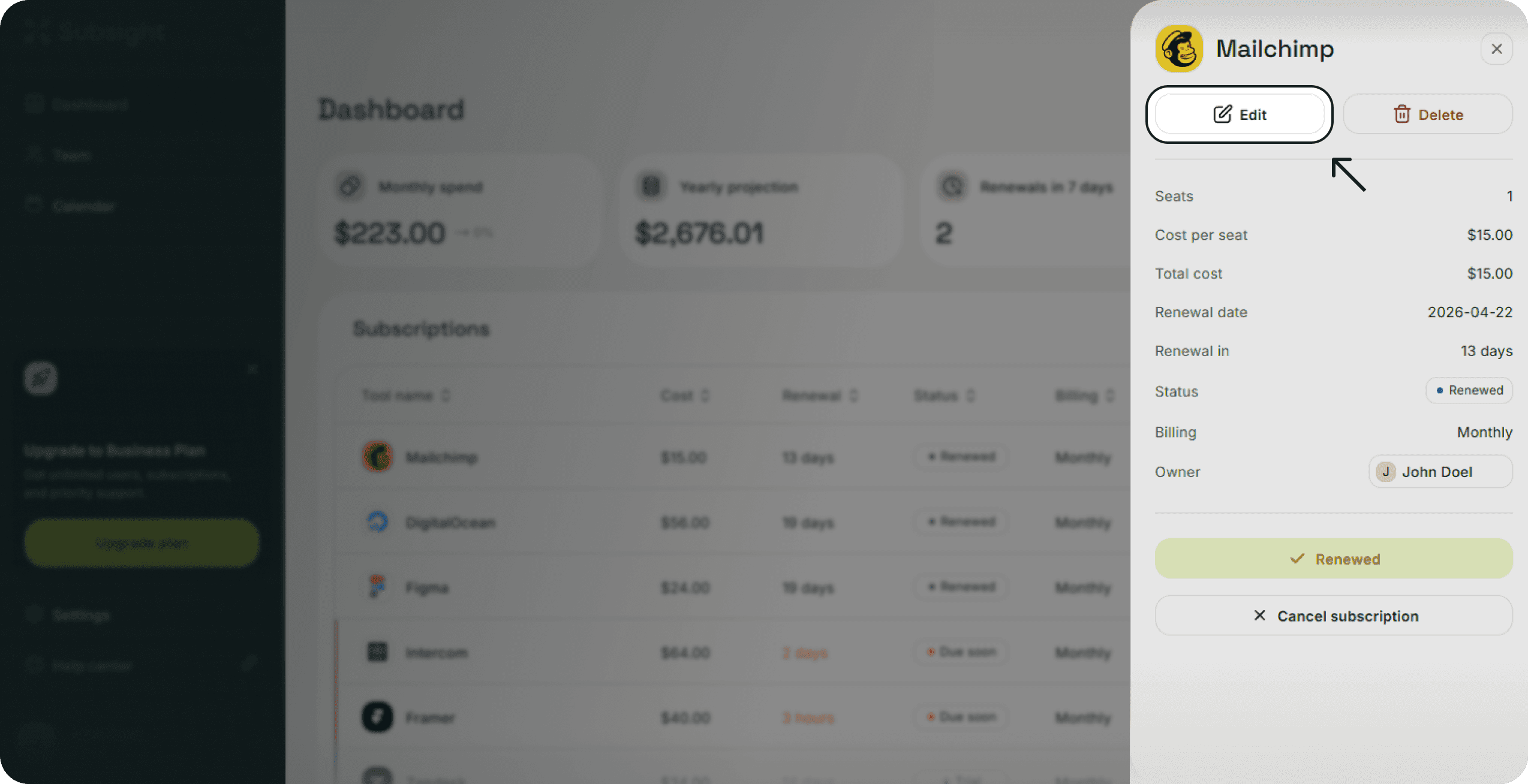
In the side panel, click the Edit button located at the top left next to the tool name. This will launch the Edit subscription modal.
3. Update Your Information
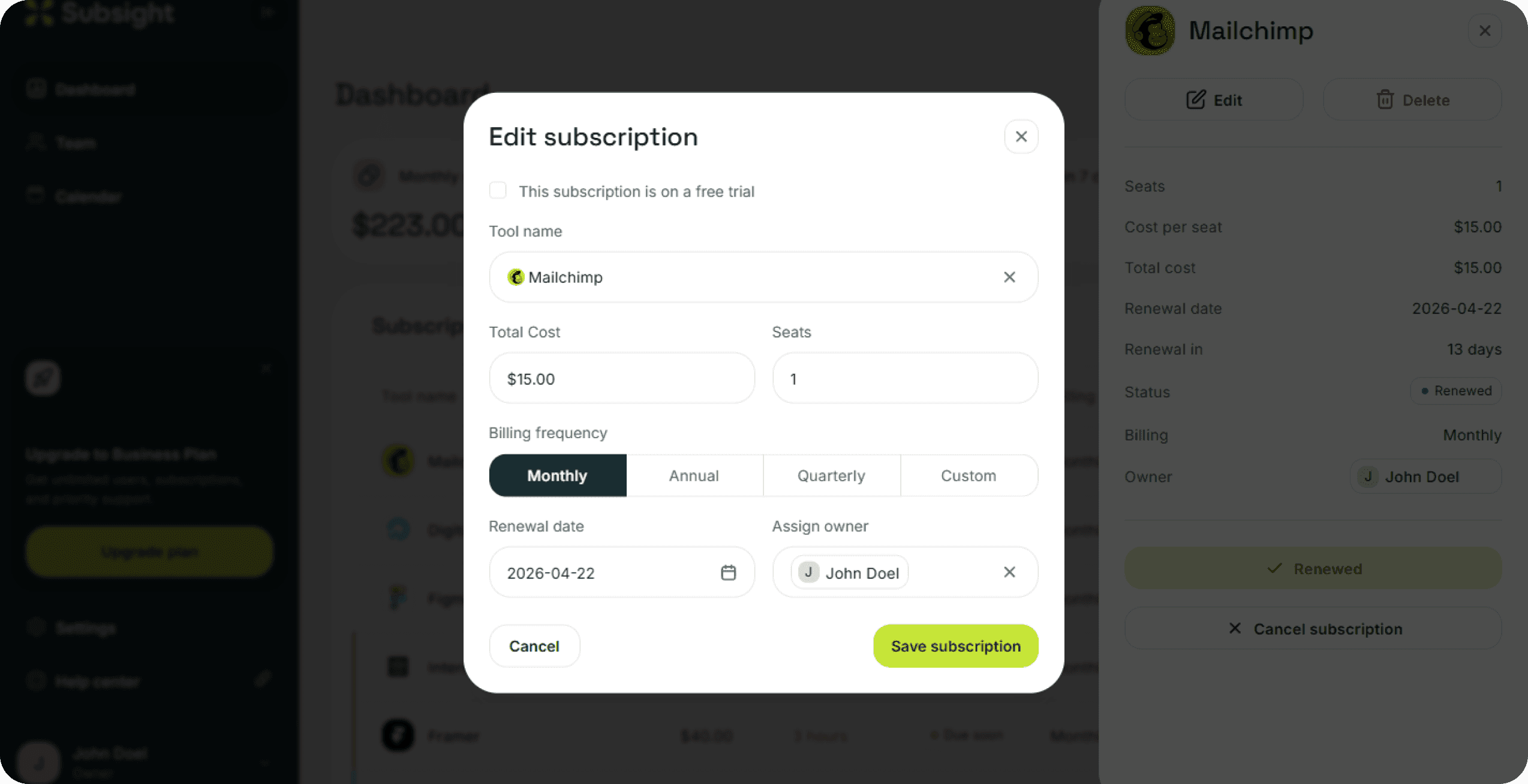
You can modify any of the following fields within the modal:
Tool name: Change the name of the service or update its icon.
Cost: Update the price to reflect new billing terms.
Seats: Adjust the number of licenses or seats currently in use.
Billing frequency: Select a new cycle such as Monthly, Annual, Quarterly, or Custom.
Renewal date: Pick a new date from the calendar to reset your alert timeline.
Assign owner: Use the dropdown menu to change the team member responsible for this specific tool.
4. Save Changes
Review your updates to ensure the cost and renewal dates are correct. Click Save subscription at the bottom of the modal to apply the changes to your workspace. Your dashboard metrics and upcoming alerts will update automatically to reflect the new data.
1. Open the Subscription Panel
From your Dashboard, locate the tool you wish to modify within the subscriptions list. Click anywhere on that subscription row to open the details side panel on the right side of the screen.
2. Enter Edit Mode
In the side panel, click the Edit button located at the top left next to the tool name. This will launch the Edit subscription modal.
3. Update Your Information
You can modify any of the following fields within the modal:
Tool name: Change the name of the service or update its icon.
Cost: Update the price to reflect new billing terms.
Seats: Adjust the number of licenses or seats currently in use.
Billing frequency: Select a new cycle such as Monthly, Annual, Quarterly, or Custom.
Renewal date: Pick a new date from the calendar to reset your alert timeline.
Assign owner: Use the dropdown menu to change the team member responsible for this specific tool.
4. Save Changes
Review your updates to ensure the cost and renewal dates are correct. Click Save subscription at the bottom of the modal to apply the changes to your workspace. Your dashboard metrics and upcoming alerts will update automatically to reflect the new data.


