
Search for articles


Importing Bank Statements
Manual entry can be time-consuming. Instead, you can upload your bank statement and let our AI scanner identify your recurring software expenses in seconds.

Written by Petras Nargela
Written by Petras Nargela

Last updated on
1. Select Import Method
Navigate to the Add subscription screen. Select Bank statement from the available options.
2. Upload Your File
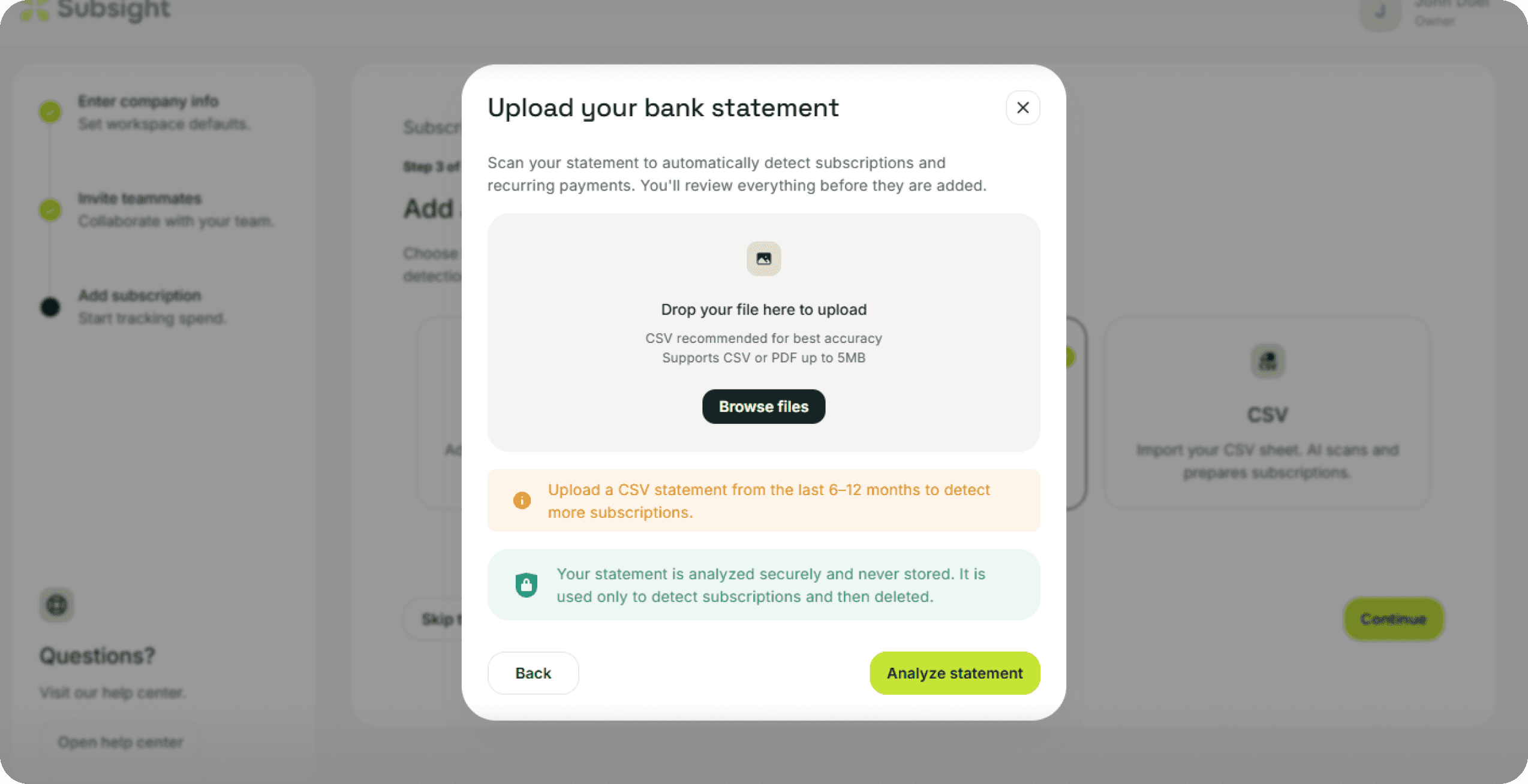
You will see an upload modal. Drag and drop your file or click Browse files to select it from your computer.
File Requirements:
Format: .PDF or .CSV
Size Limit: Up to 5MB
Recommendation: For the best accuracy, we recommend uploading statements that cover the last 6–12 months. This helps the AI identify billing cycles more accurately.
Security Note: Your data is processed securely and never stored. We use the file once for AI analysis and then permanently delete it.
Click Start scanning to begin.
3. AI Analysis
Subsight will scan the document to spot recurring charges and match them against our database of known SaaS tools. This usually takes a few minutes.
4. Review Detected Subscriptions
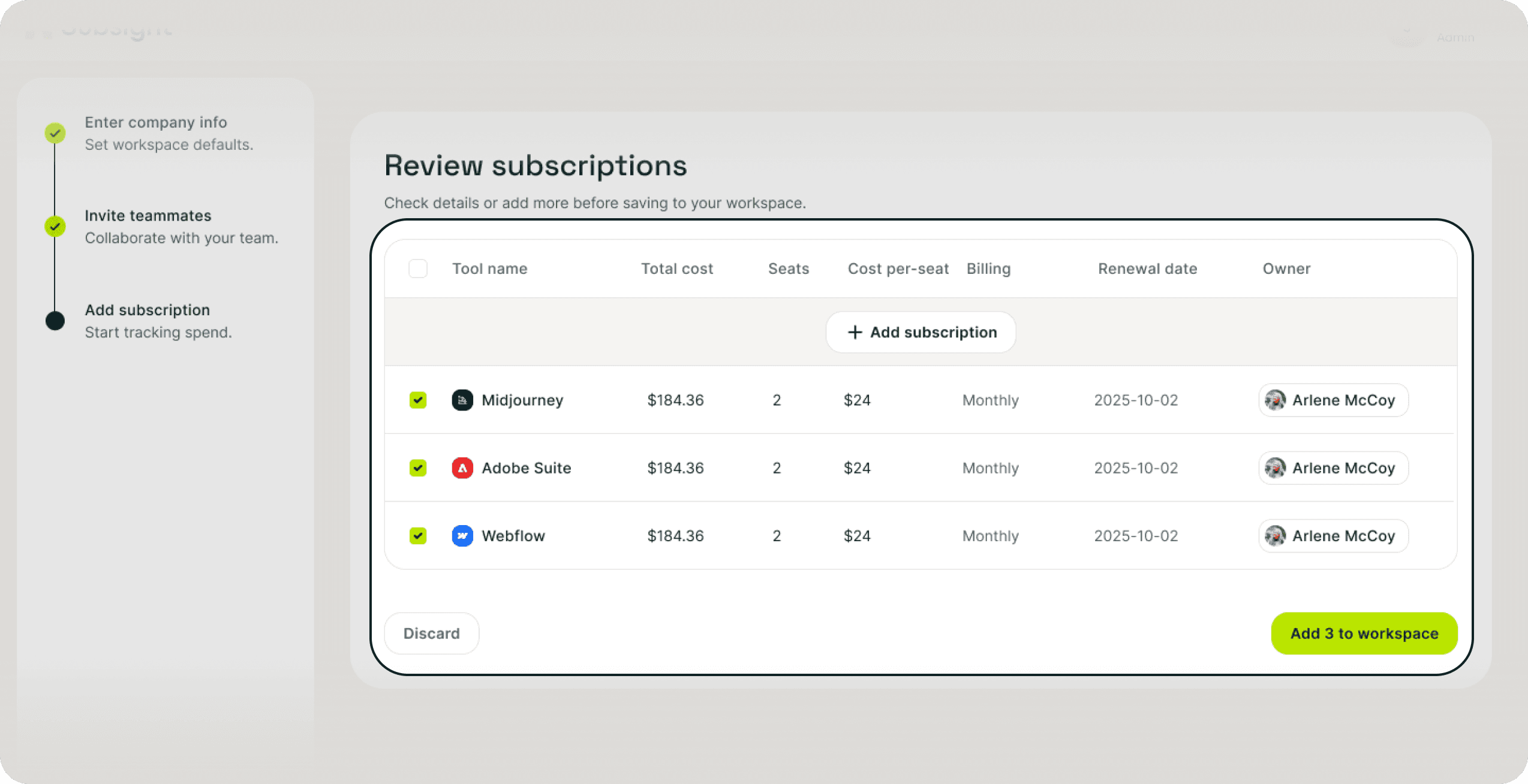
Once the scan is complete, you will see a list of potential subscriptions. The AI is smart, but you should verify the details:
Selection: Check the boxes next to the tools you want to track. Uncheck any one-off purchases that were mistaken for subscriptions.
Details: Review the Total cost and Billing frequency.
Team: Assign the correct Owner or adjust the Seats count if necessary.
Note: Per-seat costs are calculated automatically based on the total cost and the number of seats you enter.
5. Add to Workspace
When you are satisfied with the list, click the Add to workspace button at the bottom right. Your dashboard will update immediately with your new data.
1. Select Import Method
Navigate to the Add subscription screen. Select Bank statement from the available options.
2. Upload Your File
You will see an upload modal. Drag and drop your file or click Browse files to select it from your computer.
File Requirements:
Format: .PDF or .CSV
Size Limit: Up to 5MB
Recommendation: For the best accuracy, we recommend uploading statements that cover the last 6–12 months. This helps the AI identify billing cycles more accurately.
Security Note: Your data is processed securely and never stored. We use the file once for AI analysis and then permanently delete it.
Click Start scanning to begin.
3. AI Analysis
Subsight will scan the document to spot recurring charges and match them against our database of known SaaS tools. This usually takes a few minutes.
4. Review Detected Subscriptions
Once the scan is complete, you will see a list of potential subscriptions. The AI is smart, but you should verify the details:
Selection: Check the boxes next to the tools you want to track. Uncheck any one-off purchases that were mistaken for subscriptions.
Details: Review the Total cost and Billing frequency.
Team: Assign the correct Owner or adjust the Seats count if necessary.
Note: Per-seat costs are calculated automatically based on the total cost and the number of seats you enter.
5. Add to Workspace
When you are satisfied with the list, click the Add to workspace button at the bottom right. Your dashboard will update immediately with your new data.


