Search for articles

Connecting to Slack

Connecting to Slack

Integrating Subsight with Slack allows your entire team to stay informed about upcoming renewals without checking their email. By connecting your workspace, automated alerts are sent directly to your preferred Slack channel.

Written by Petras Nargela

Written by Petras Nargela

Last updated on

1. Accessing Integrations

To start the connection process:

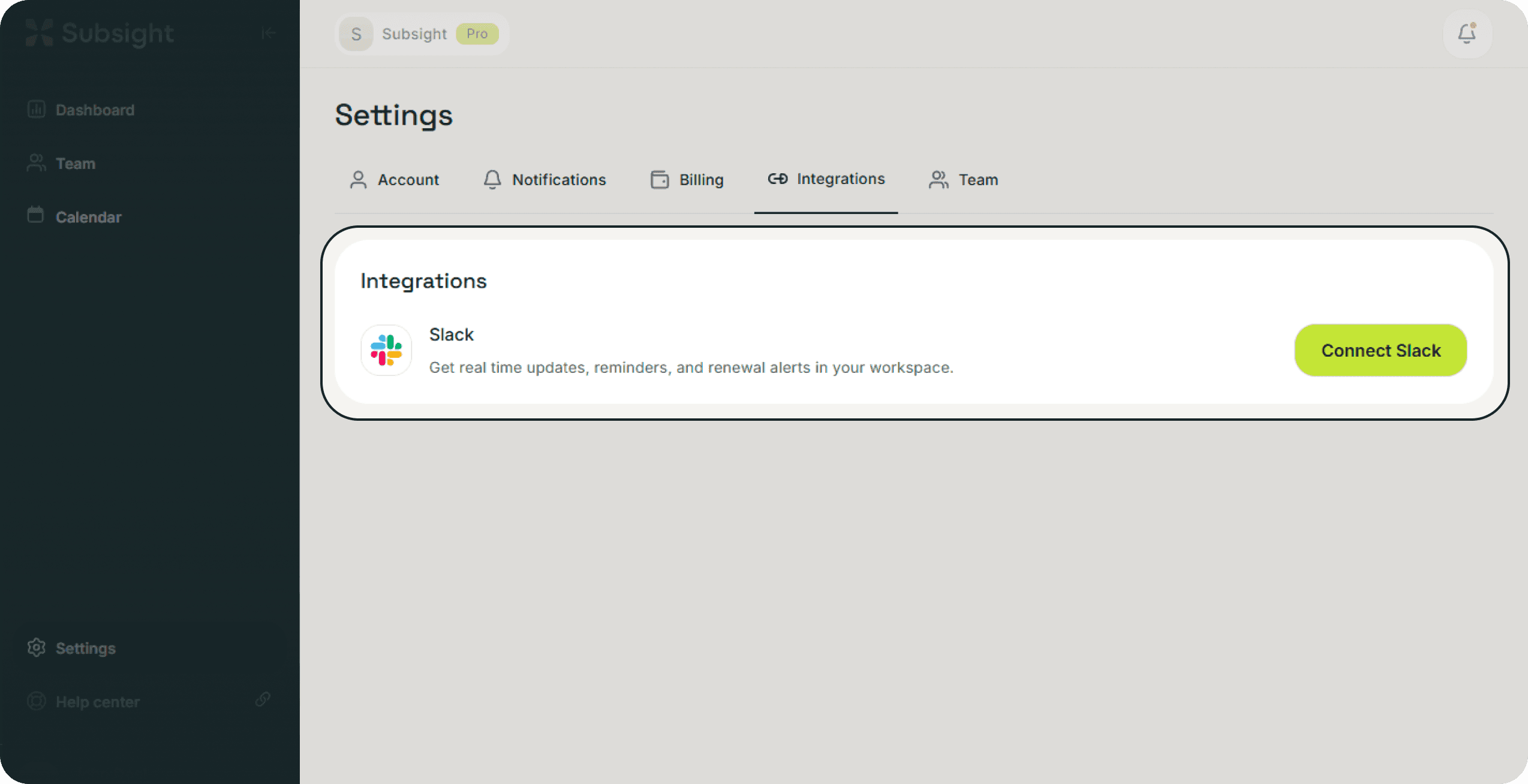
  1. Click on Settings in the bottom-left sidebar.

  2. Navigate to the Integrations tab at the top of the Settings page.

Subsight settings page with integrations tab open and connect Slack button visible.

2. Linking Your Slack Workspace

Once on the Integrations page, you will see the Slack option:

  • Connect Slack: Click the green Connect Slack button.

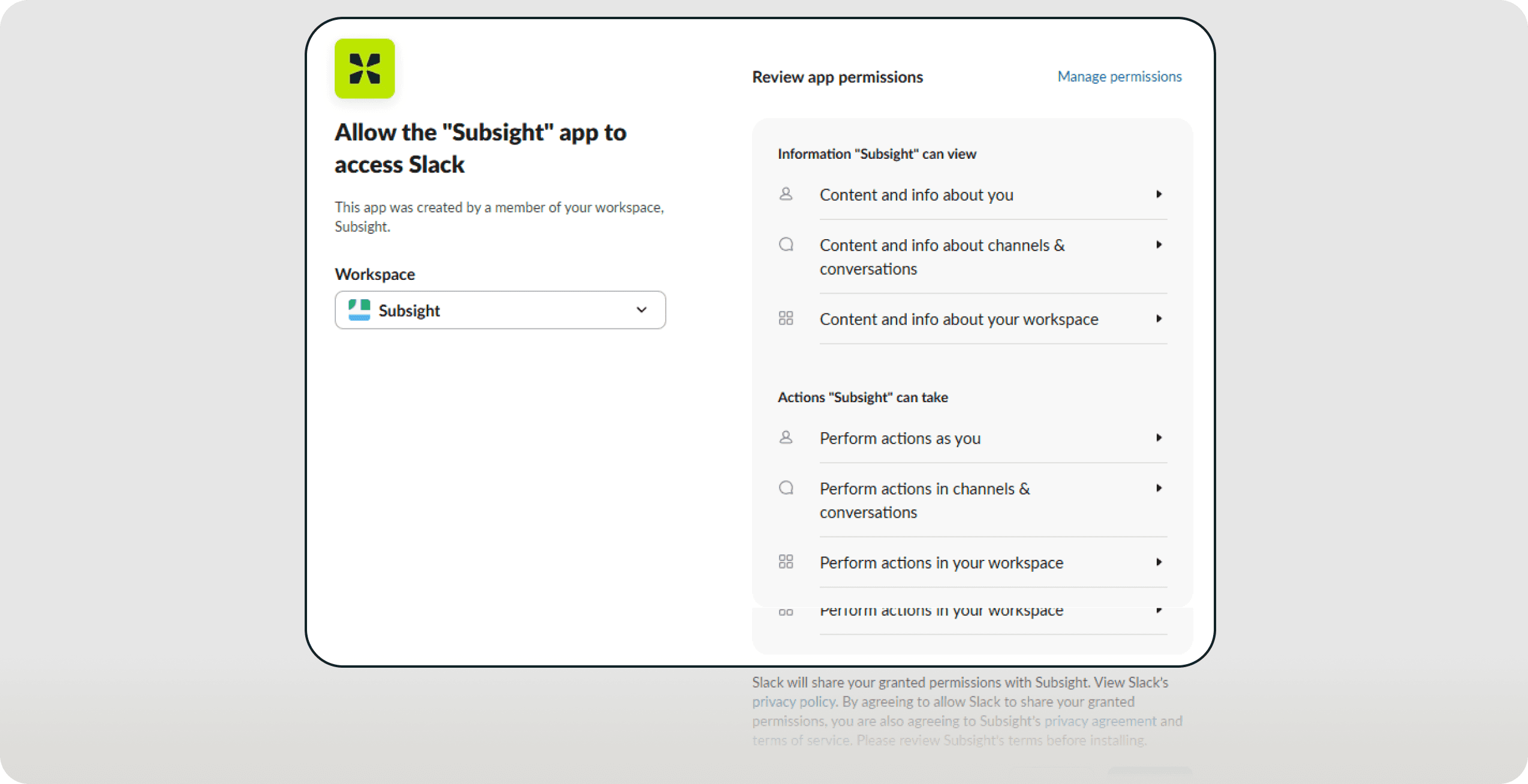
  • Authorization: You will be redirected to Slack to authorize Subsight. Follow the on-screen prompts to grant permission and select the specific channel where you want renewal alerts to appear.

Slack authorization screen showing permission request and channel selection for Subsight integration.

3. Managing Slack Alerts

After the connection is established, you can manage how Slack is used for notifications:

  • Toggle Alerts: Navigate to the Notifications tab in Settings to turn Slack renewal reminders on or off.

  • Real-time Updates: With Slack enabled, your team will receive real-time updates and reminders directly in the workspace, ensuring no renewal is overlooked.

1. Accessing Integrations

To start the connection process:

  1. Click on Settings in the bottom-left sidebar.

  2. Navigate to the Integrations tab at the top of the Settings page.

Subsight settings page with integrations tab open and connect Slack button visible.

2. Linking Your Slack Workspace

Once on the Integrations page, you will see the Slack option:

  • Connect Slack: Click the green Connect Slack button.

  • Authorization: You will be redirected to Slack to authorize Subsight. Follow the on-screen prompts to grant permission and select the specific channel where you want renewal alerts to appear.

Slack authorization screen showing permission request and channel selection for Subsight integration.

3. Managing Slack Alerts

After the connection is established, you can manage how Slack is used for notifications:

  • Toggle Alerts: Navigate to the Notifications tab in Settings to turn Slack renewal reminders on or off.

  • Real-time Updates: With Slack enabled, your team will receive real-time updates and reminders directly in the workspace, ensuring no renewal is overlooked.