
Search for articles


Managing Notification Settings
While Subsight’s renewal alerts are automated, you have full control over the delivery method and frequency of these messages. You can adjust these preferences at any time from the Notifications tab within your Settings.

Written by Petras Nargela
Written by Petras Nargela

Last updated on
1. Choosing Your Delivery Channels
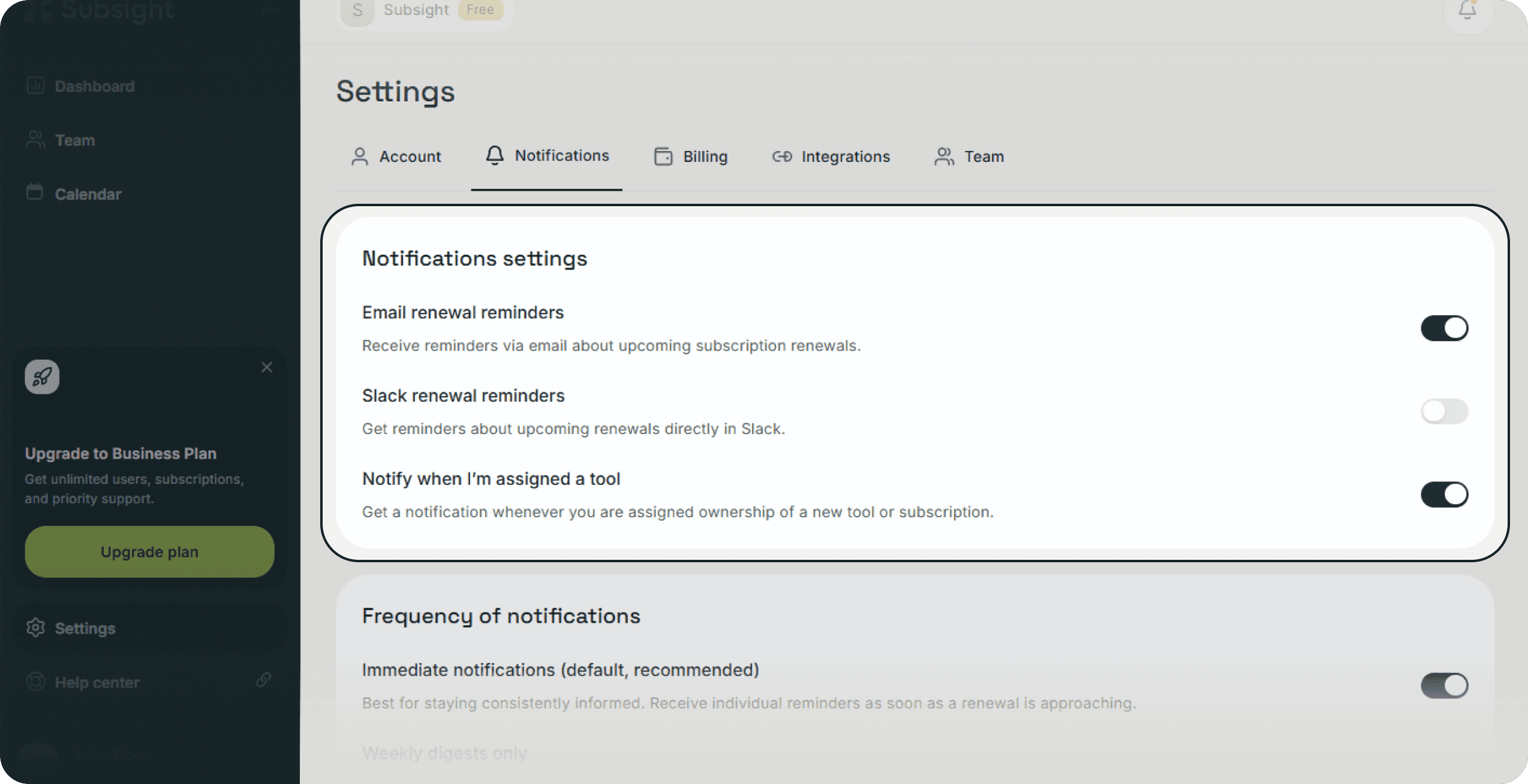
You can toggle specific notification types on or off to match your workflow:
Email renewal reminders: Receive automated alerts directly to your inbox.
Slack renewal reminders: If you have linked your workspace, receive alerts in your connected Slack channels.
Notify when I’m assigned a tool: Enable this to be alerted the moment ownership of a subscription is transferred to you.
2. Adjusting Frequency and Style
Under the Frequency of notifications section, you can mix and match how you receive information to ensure you never miss a deadline:
Alert Tier (Choose one):
Immediate notifications (Default): The recommended setting for staying consistently informed. You receive individual reminders as soon as a renewal approaches.
Critical alerts only: Ideal for minimal interruptions. You only get notified for urgent situations, such as overdue items or immediate renewals.
The Weekly Digest (Optional):
Weekly digests only: You can toggle this on to receive a single, consolidated summary once a week covering all upcoming subscription renewals.
Combined View: This setting is optional and can be used on its own or enabled alongside your Immediate or Critical alerts if you want both a real-time ping and a high-level weekly overview.
1. Choosing Your Delivery Channels
You can toggle specific notification types on or off to match your workflow:
Email renewal reminders: Receive automated alerts directly to your inbox.
Slack renewal reminders: If you have linked your workspace, receive alerts in your connected Slack channels.
Notify when I’m assigned a tool: Enable this to be alerted the moment ownership of a subscription is transferred to you.
2. Adjusting Frequency and Style
Under the Frequency of notifications section, you can mix and match how you receive information to ensure you never miss a deadline:
Alert Tier (Choose one):
Immediate notifications (Default): The recommended setting for staying consistently informed. You receive individual reminders as soon as a renewal approaches.
Critical alerts only: Ideal for minimal interruptions. You only get notified for urgent situations, such as overdue items or immediate renewals.
The Weekly Digest (Optional):
Weekly digests only: You can toggle this on to receive a single, consolidated summary once a week covering all upcoming subscription renewals.
Combined View: This setting is optional and can be used on its own or enabled alongside your Immediate or Critical alerts if you want both a real-time ping and a high-level weekly overview.


