
Search for articles


Downloading Invoices
Subsight provides a transparent record of all your subscription payments. You can view, manage, and download individual invoices and receipts directly from your workspace settings.

Written by Petras Nargela
Written by Petras Nargela

Last updated on
1. Locating Your Billing History
To view your past payments:
Navigate to Settings in the bottom-left sidebar.
Click on the Billing tab at the top of the page.
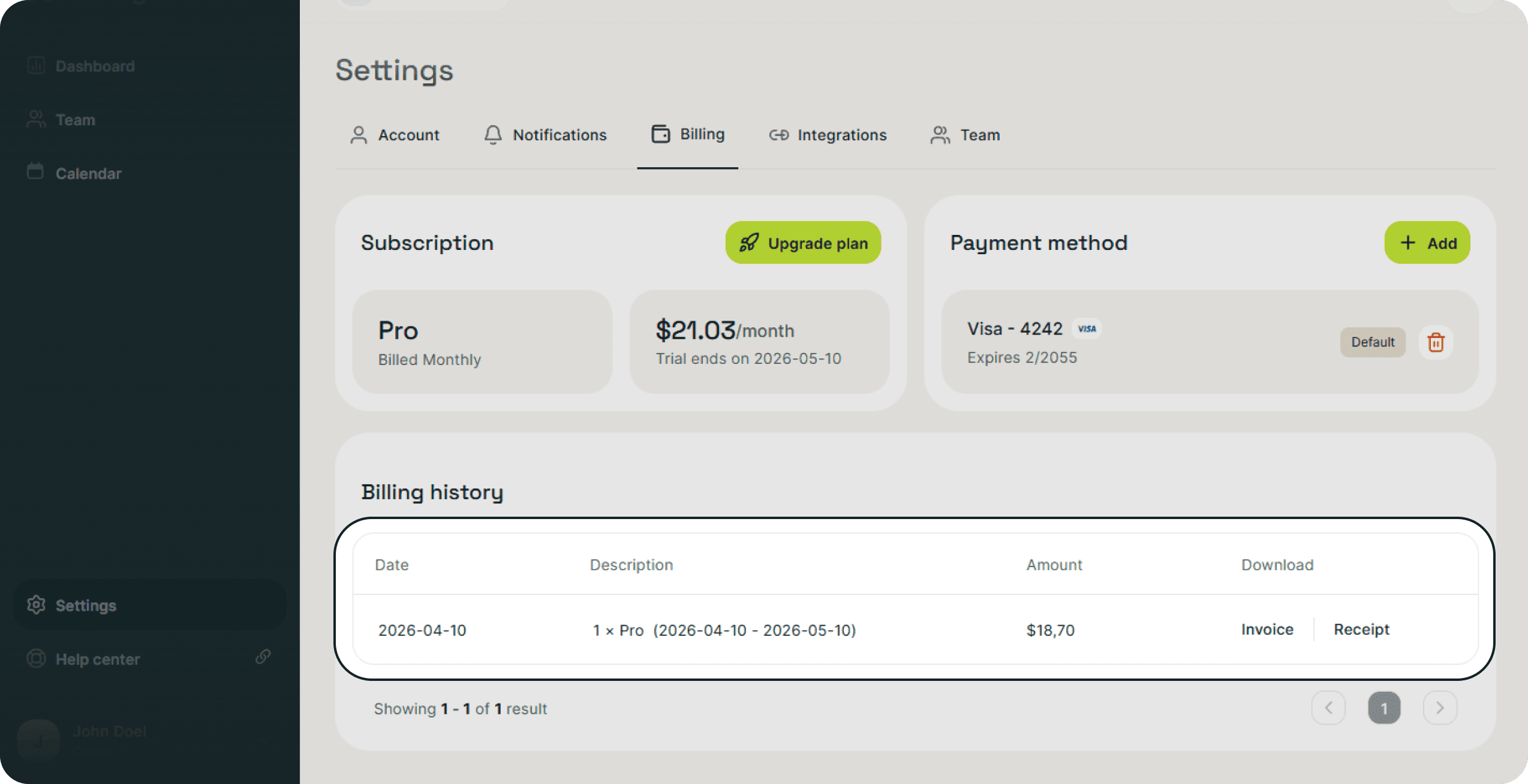
Scroll down to the Billing history section, which lists all transactions by date, plan description, and total amount.
2. Downloading Documents
For every successful transaction, you have two types of documents available for download:
Invoice: Click Invoice in the row of a specific transaction to download a detailed billing document for your records.
Receipt: Click Receipt to download a simple proof of payment for the transaction.
3. Managing Stripe Billing Details
When you click to download a document, you will be directed to a secure Stripe portal. From this page, you can:
Review Details: See the specific Invoice number, Payment date, and the Payment method (e.g., Visa ending in 5556) used for that charge.
Finalize Downloads: Use the blue Download invoice or Download receipt buttons to save the PDF files to your device.
View Payment Status: Confirm that the invoice is marked as "Paid" and see the final amount charged in your workspace's currency.
1. Locating Your Billing History
To view your past payments:
Navigate to Settings in the bottom-left sidebar.
Click on the Billing tab at the top of the page.
Scroll down to the Billing history section, which lists all transactions by date, plan description, and total amount.
2. Downloading Documents
For every successful transaction, you have two types of documents available for download:
Invoice: Click Invoice in the row of a specific transaction to download a detailed billing document for your records.
Receipt: Click Receipt to download a simple proof of payment for the transaction.
3. Managing Stripe Billing Details
When you click to download a document, you will be directed to a secure Stripe portal. From this page, you can:
Review Details: See the specific Invoice number, Payment date, and the Payment method (e.g., Visa ending in 5556) used for that charge.
Finalize Downloads: Use the blue Download invoice or Download receipt buttons to save the PDF files to your device.
View Payment Status: Confirm that the invoice is marked as "Paid" and see the final amount charged in your workspace's currency.


