
Search for articles


Payment Methods
Subsight uses Stripe to process all payments securely, ensuring your financial information is never stored directly on our servers. You can manage your payment methods at any time from your workspace settings.

Written by Petras Nargela
Written by Petras Nargela

Last updated on
1. Accessing Billing Settings
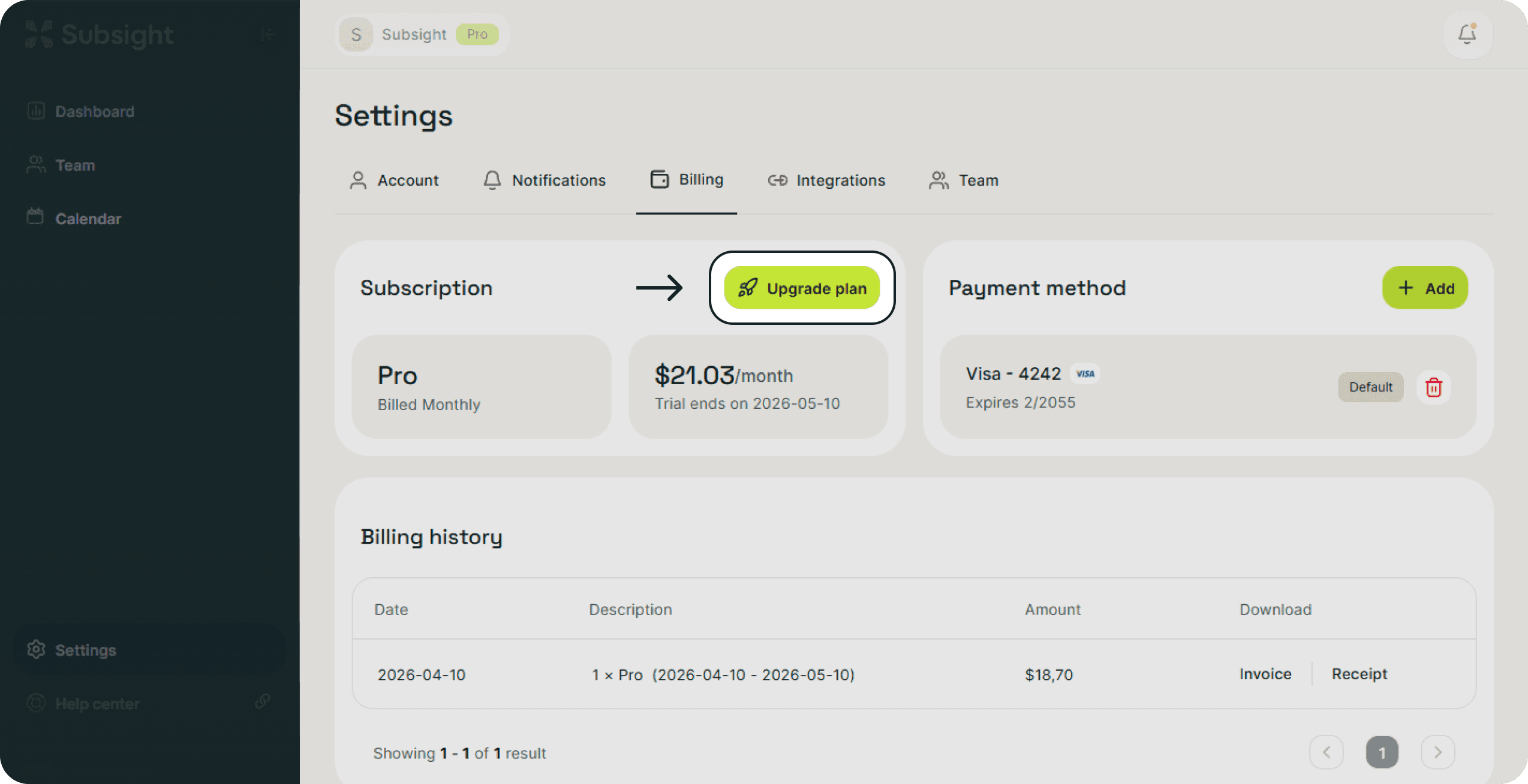
To view your current payment methods:
Click on Settings in the bottom-left sidebar.
Navigate to the Billing tab at the top of the page.
Locate the Payment method section on the right side of the dashboard.
2. Adding a New Card
If you haven't added a card yet, or need to add an additional one:
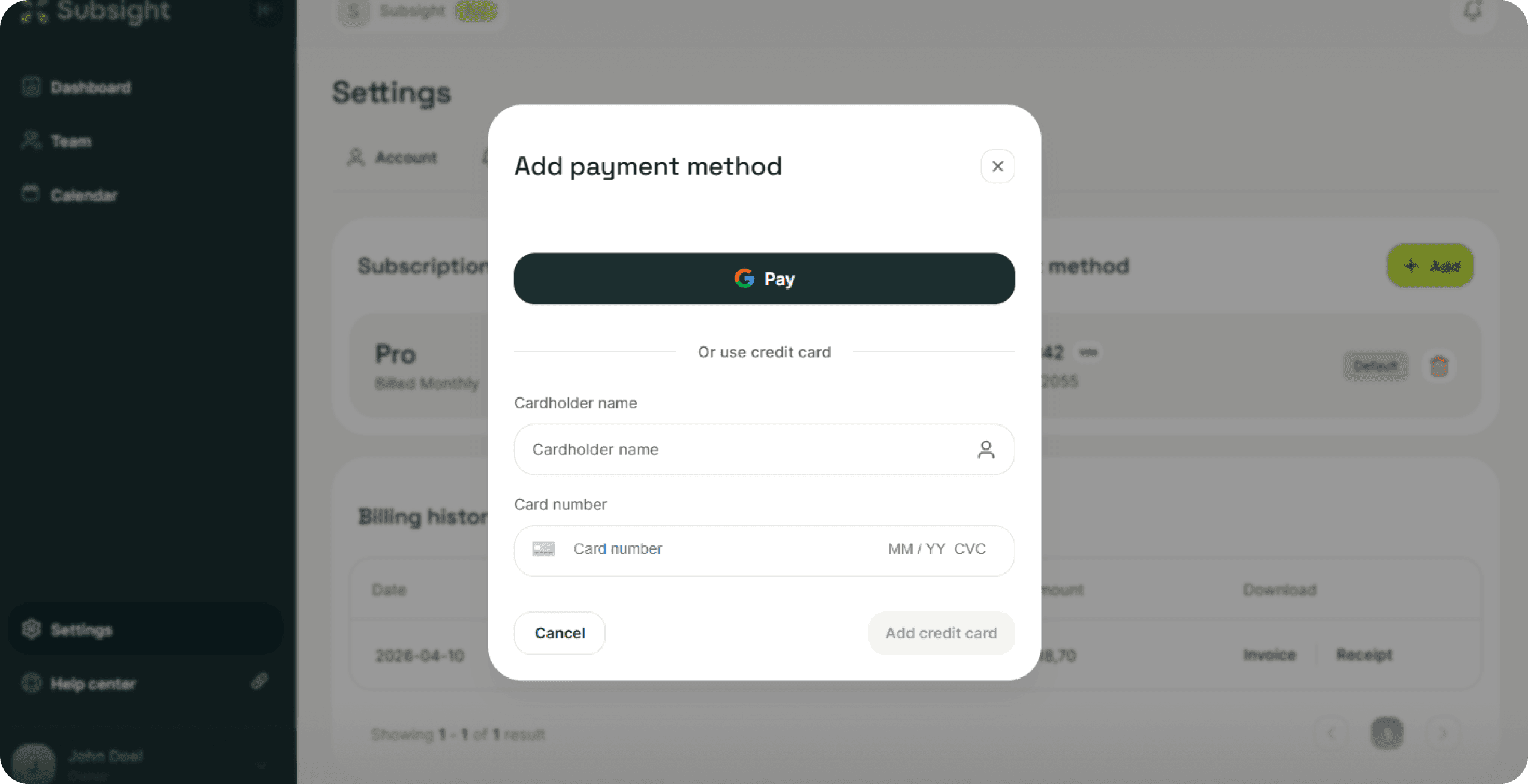
Click the green + Add button in the Payment method header.
A secure modal will appear. You can choose to pay via Google Pay for a quick checkout or manually enter your Cardholder name and Card number.
Click Add credit card to securely save the information to your Stripe profile.
3. Managing Multiple Methods
If you have multiple cards on file, you can designate which one should be used for your automated renewals:
Show More/Less: Click Show more payment methods to see your full list of saved cards.
Set Default: Click the Make Default button next to the card you wish to use for future billing. The primary card will be clearly labeled with a Default badge.
Remove a Card: To delete an old or expired payment method, click the Red Trash Icon next to the specific card.
4. Security Standards
By leveraging Stripe, Subsight supports major credit card providers including Visa and Mastercard while maintaining industry-standard encryption for every transaction.
1. Accessing Billing Settings
To view your current payment methods:
Click on Settings in the bottom-left sidebar.
Navigate to the Billing tab at the top of the page.
Locate the Payment method section on the right side of the dashboard.
2. Adding a New Card
If you haven't added a card yet, or need to add an additional one:
Click the green + Add button in the Payment method header.
A secure modal will appear. You can choose to pay via Google Pay for a quick checkout or manually enter your Cardholder name and Card number.
Click Add credit card to securely save the information to your Stripe profile.
3. Managing Multiple Methods
If you have multiple cards on file, you can designate which one should be used for your automated renewals:
Show More/Less: Click Show more payment methods to see your full list of saved cards.
Set Default: Click the Make Default button next to the card you wish to use for future billing. The primary card will be clearly labeled with a Default badge.
Remove a Card: To delete an old or expired payment method, click the Red Trash Icon next to the specific card.
4. Security Standards
By leveraging Stripe, Subsight supports major credit card providers including Visa and Mastercard while maintaining industry-standard encryption for every transaction.


