
Search for articles


Assigning Tool Owners
Assigning owners to your subscriptions is the best way to ensure accountability. When a tool has a designated owner, that person becomes responsible for confirming renewals and managing seat counts, ensuring your data stays accurate.

Written by Petras Nargela
Written by Petras Nargela

Last updated on
1. Assigning an Owner During Creation
You can establish ownership the moment you add a new tool to your workspace.
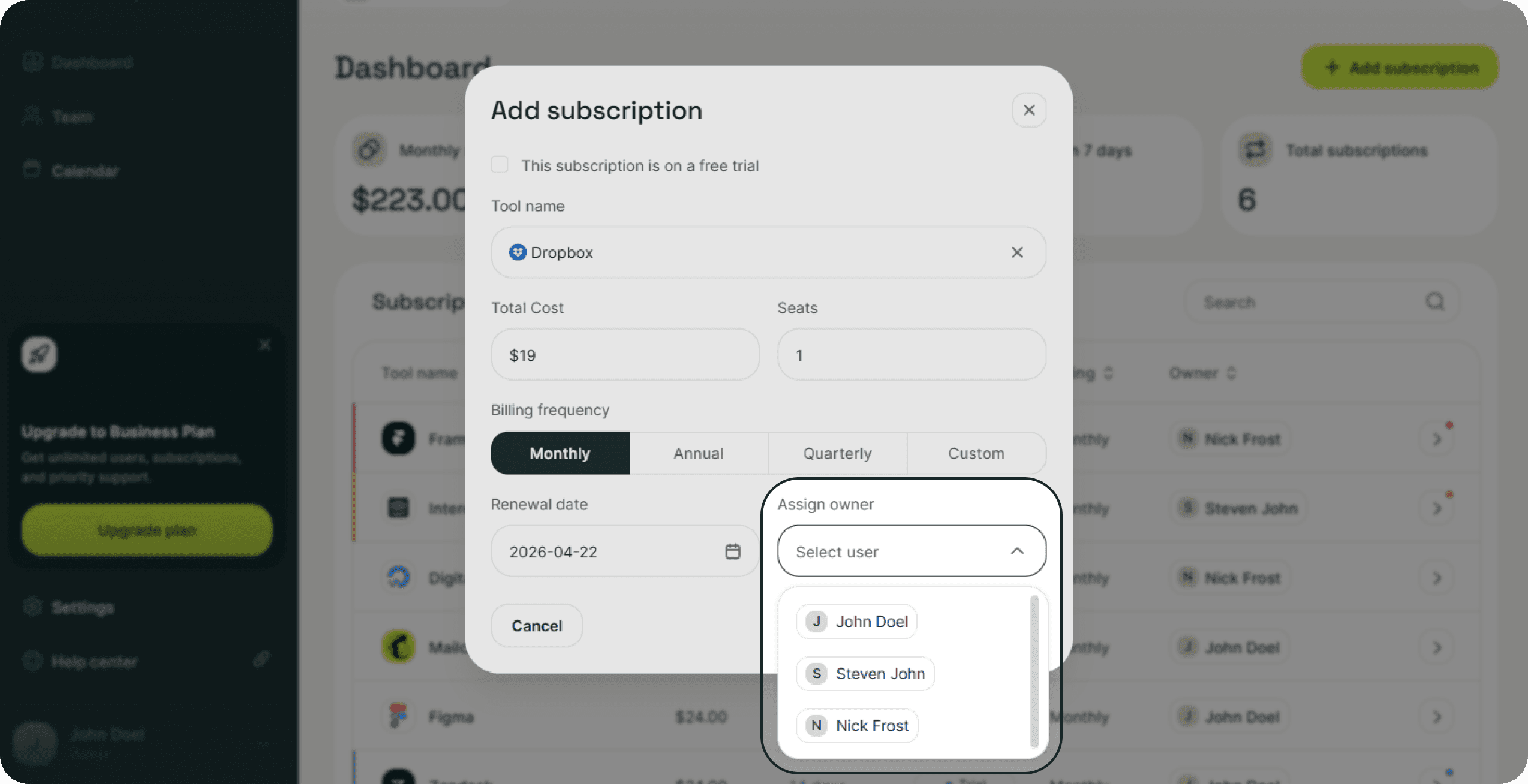
Manual Entry: In the Add subscription modal, use the Assign owner dropdown to select a team member from your roster.
Bulk Imports: When reviewing tools detected from a bank statement or CSV, use the Owner column to select the correct person for each detected tool before finalizing the import.
2. Changing an Owner for Existing Tools
If a team member leaves or responsibilities shift, you can update ownership directly from your dashboard.
Click on the subscription row to open the details side panel.
Click the Edit button at the top of the panel.
In the Edit subscription modal, open the Assign owner dropdown and select the new owner.
Click Save subscription to apply the change.
3. Reviewing Ownership by Member
You can audit ownership at scale through the Team page.
Click on a team member's row to open their personal details panel.
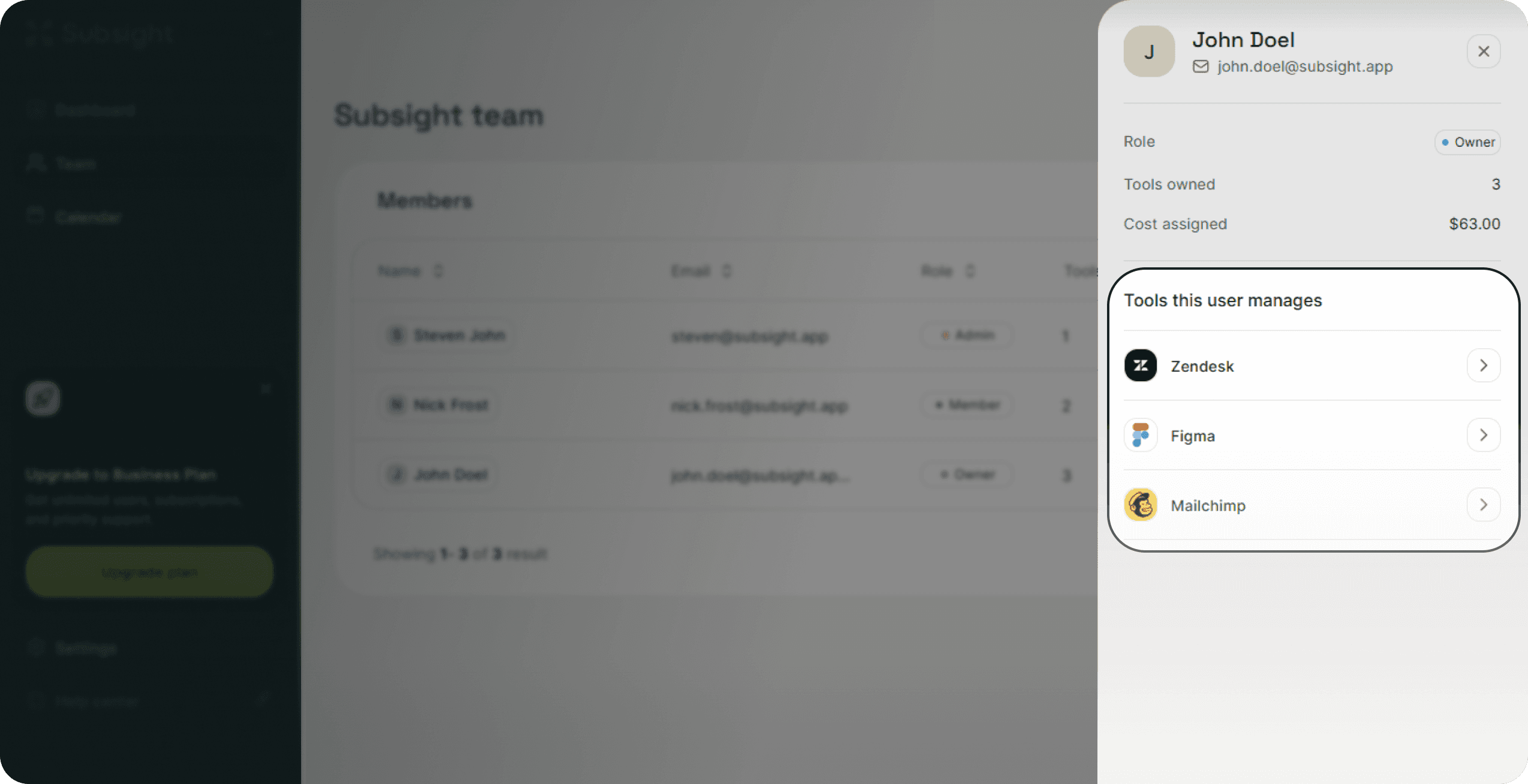
The Tools this user manages section provides a complete list of every subscription currently assigned to that individual.
This view also displays the total Cost assigned to them, helping you understand how much of the company budget each person manages.
1. Assigning an Owner During Creation
You can establish ownership the moment you add a new tool to your workspace.
Manual Entry: In the Add subscription modal, use the Assign owner dropdown to select a team member from your roster.
Bulk Imports: When reviewing tools detected from a bank statement or CSV, use the Owner column to select the correct person for each detected tool before finalizing the import.
2. Changing an Owner for Existing Tools
If a team member leaves or responsibilities shift, you can update ownership directly from your dashboard.
Click on the subscription row to open the details side panel.
Click the Edit button at the top of the panel.
In the Edit subscription modal, open the Assign owner dropdown and select the new owner.
Click Save subscription to apply the change.
3. Reviewing Ownership by Member
You can audit ownership at scale through the Team page.
Click on a team member's row to open their personal details panel.
The Tools this user manages section provides a complete list of every subscription currently assigned to that individual.
This view also displays the total Cost assigned to them, helping you understand how much of the company budget each person manages.


