
Search for articles


Inviting Team Members
Collaborating with your team ensures that subscription ownership is clear and no renewal goes unnoticed. You can invite new members to your workspace at any time from the Team settings.

Written by Petras Nargela
Written by Petras Nargela

Last updated on
1. Access the Team Page
To manage your collaborators:
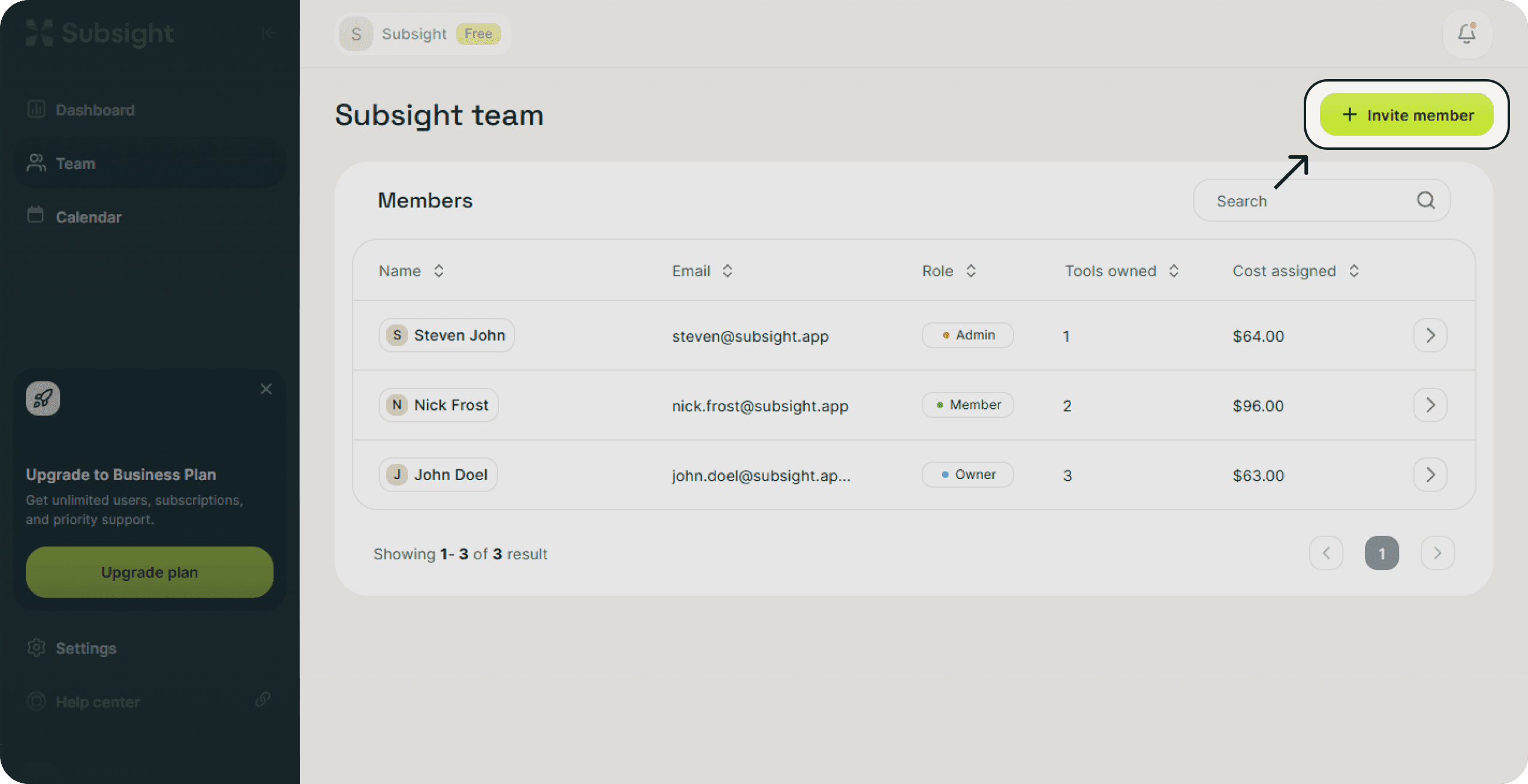
Click on Team in the sidebar navigation.
Click the green Invite member button located at the top right of the screen.
2. Send Invitations
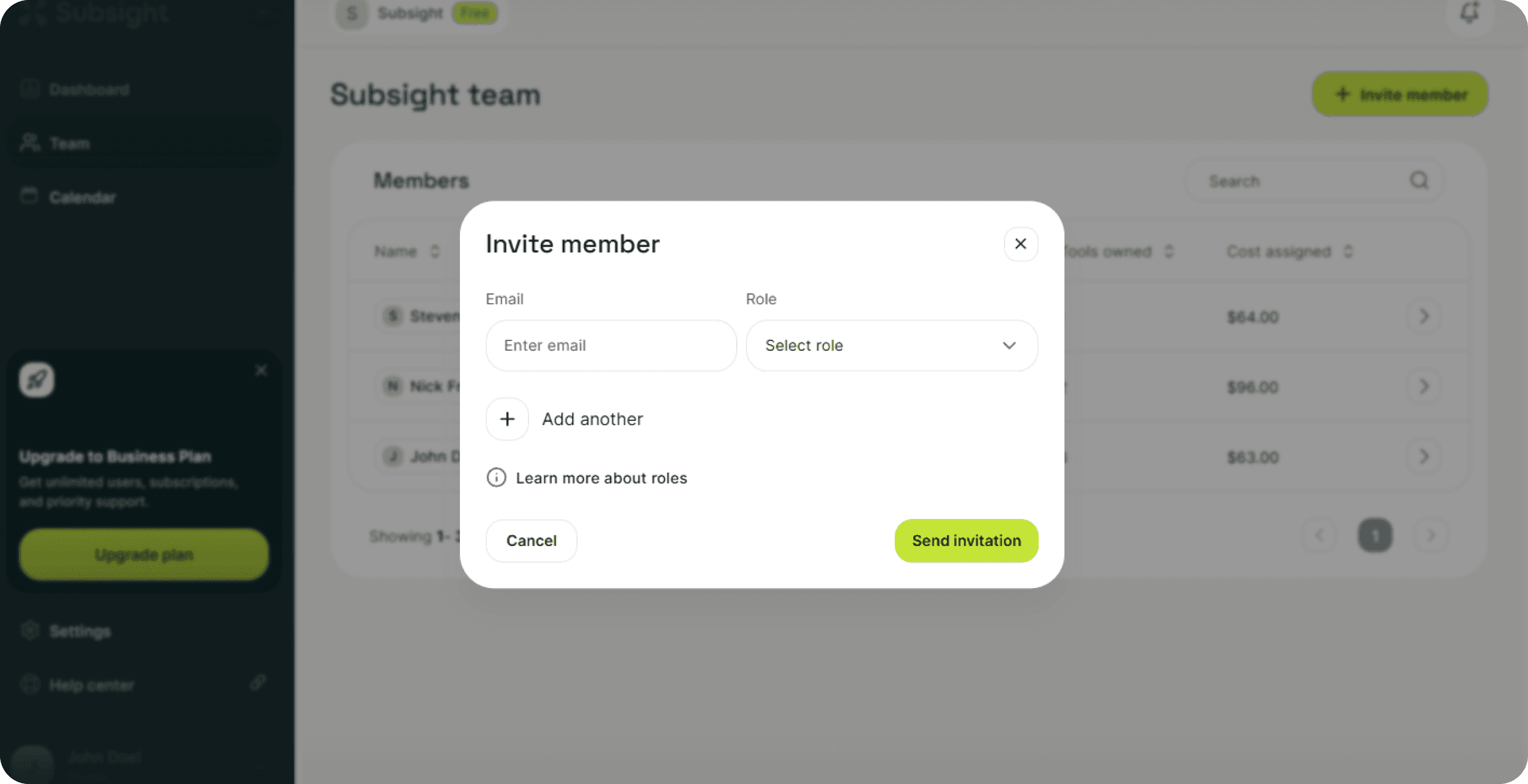
An Invite member modal will appear where you can enter the details for your teammates:
Email: Enter the work email address of the person you want to invite.
Role: Choose the appropriate permission level from the dropdown:
Owner: Full access, including billing management.
Admin: Full access to all workspace features.
Member: View and edit access limited to assigned tools.
Bulk Invite: Click Add another to invite multiple people in a single session. If you add a row by mistake, click the red trash icon to remove it.
Click Send invitation to deliver the invite links via email.
3. Track Invitation Status
Once sent, the new user will appear in your member list.
Invite pending: This tag indicates the user has been invited but has not yet created their account.
Member Details: You can see each person's Role, the number of Tools owned, and the total Cost assigned to them directly from this table.
1. Access the Team Page
To manage your collaborators:
Click on Team in the sidebar navigation.
Click the green Invite member button located at the top right of the screen.
2. Send Invitations
An Invite member modal will appear where you can enter the details for your teammates:
Email: Enter the work email address of the person you want to invite.
Role: Choose the appropriate permission level from the dropdown:
Owner: Full access, including billing management.
Admin: Full access to all workspace features.
Member: View and edit access limited to assigned tools.
Bulk Invite: Click Add another to invite multiple people in a single session. If you add a row by mistake, click the red trash icon to remove it.
Click Send invitation to deliver the invite links via email.
3. Track Invitation Status
Once sent, the new user will appear in your member list.
Invite pending: This tag indicates the user has been invited but has not yet created their account.
Member Details: You can see each person's Role, the number of Tools owned, and the total Cost assigned to them directly from this table.


