
Search for articles


Team Page Overview
The Team page is your directory for everyone with access to your Subsight workspace. It allows you to audit who is responsible for which tools and ensure that every subscription has a clear owner.

Written by Petras Nargela
Written by Petras Nargela

Last updated on
1. Page Actions
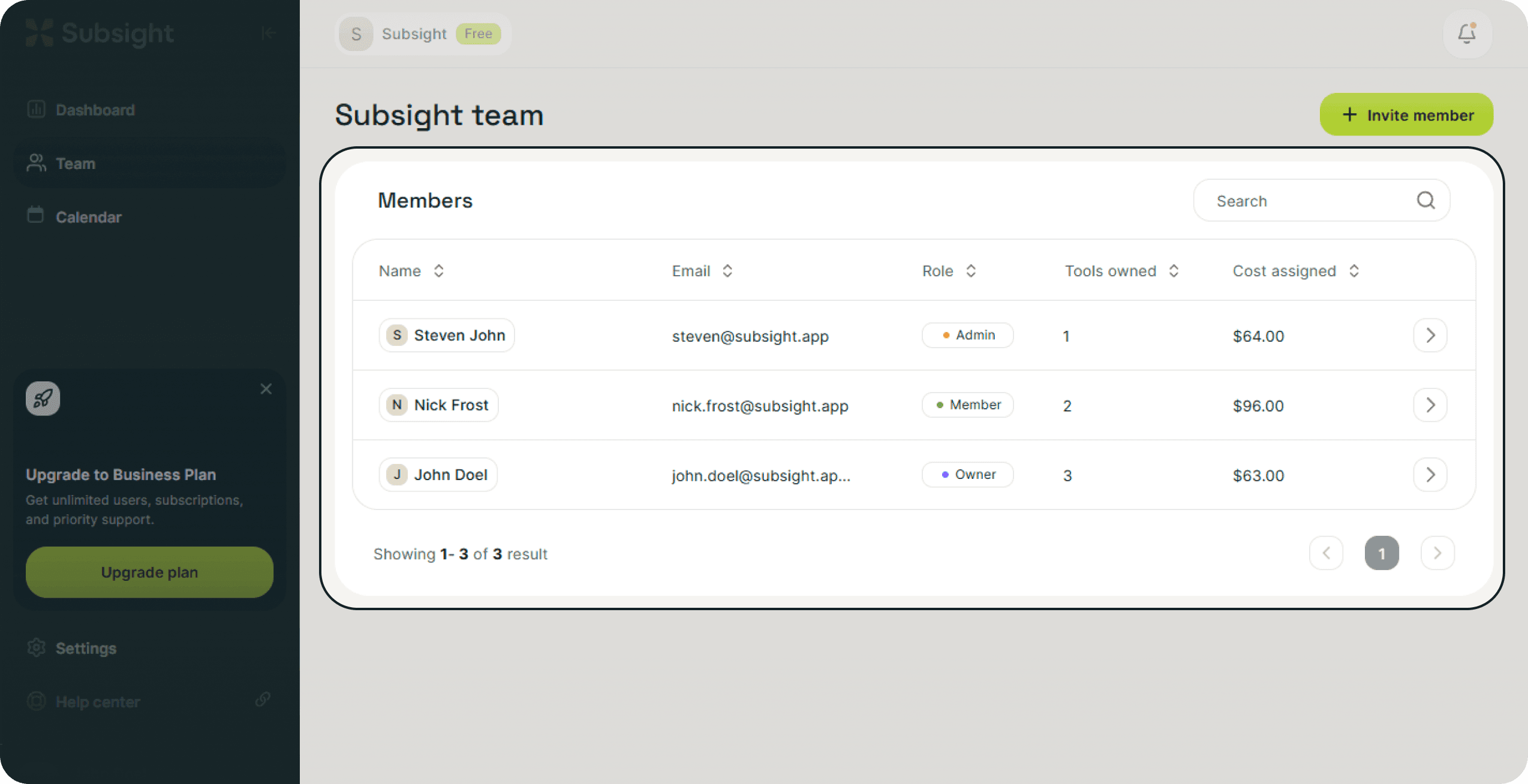
At the top right of the screen, you will find the main controls for managing your roster:
Invite member: Click the green button to add new collaborators to your workspace.
Search: Use the search bar to quickly find a specific team member by name or email.
2. The Member List
The main table provides a financial and operational snapshot of your entire organization.
Name & Email: Identifies the team member.
Role: Shows their permission level (Owner, Admin, or Member).
Tools owned: Displays the count of subscriptions this person is specifically responsible for.
Cost assigned: Shows the total monthly financial value of the tools assigned to this user.
3. Member Status
You can quickly identify the status of a user by looking at the tag next to their name:
Active: Any user listed without a status tag is considered an active member of the workspace.
Invite pending: Users who have been sent an invitation but have not yet created their account will display a grey Invite pending tag.
4. Member Details Panel
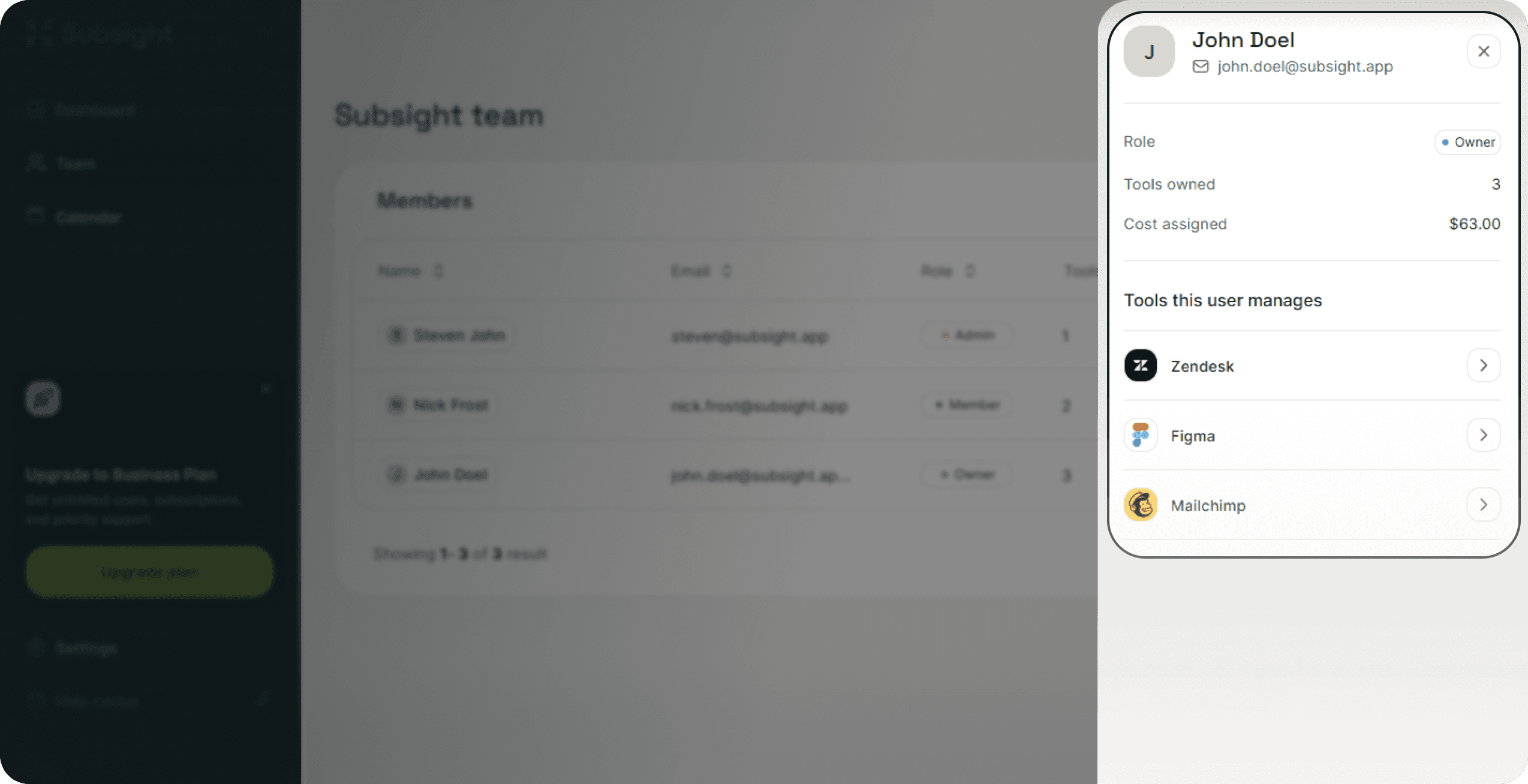
For a deeper look at a specific user's activity, click anywhere on their row (or the arrow > icon) to open the member details sidebar.
This panel allows you to audit activity and manage access:
User Stats & Permissions: At the top, you will see a summary of their Tools owned and Cost assigned. You can also use this area to change their Role via the dropdown or delete the user from the workspace.
Managed Stack: The Tools this user manages section lists every specific subscription assigned to them. You can scroll through this list to audit their specific responsibilities without leaving the Team page.
1. Page Actions
At the top right of the screen, you will find the main controls for managing your roster:
Invite member: Click the green button to add new collaborators to your workspace.
Search: Use the search bar to quickly find a specific team member by name or email.
2. The Member List
The main table provides a financial and operational snapshot of your entire organization.
Name & Email: Identifies the team member.
Role: Shows their permission level (Owner, Admin, or Member).
Tools owned: Displays the count of subscriptions this person is specifically responsible for.
Cost assigned: Shows the total monthly financial value of the tools assigned to this user.
3. Member Status
You can quickly identify the status of a user by looking at the tag next to their name:
Active: Any user listed without a status tag is considered an active member of the workspace.
Invite pending: Users who have been sent an invitation but have not yet created their account will display a grey Invite pending tag.
4. Member Details Panel
For a deeper look at a specific user's activity, click anywhere on their row (or the arrow > icon) to open the member details sidebar.
This panel allows you to audit activity and manage access:
User Stats & Permissions: At the top, you will see a summary of their Tools owned and Cost assigned. You can also use this area to change their Role via the dropdown or delete the user from the workspace.
Managed Stack: The Tools this user manages section lists every specific subscription assigned to them. You can scroll through this list to audit their specific responsibilities without leaving the Team page.


