
Search for articles


User Roles & Permissions
Subsight offers three distinct roles to help you manage your team's access. Choosing the right role ensures that members have enough permission to do their work without compromising sensitive billing data.

Written by Petras Nargela
Written by Petras Nargela

Last updated on
1. Available Roles
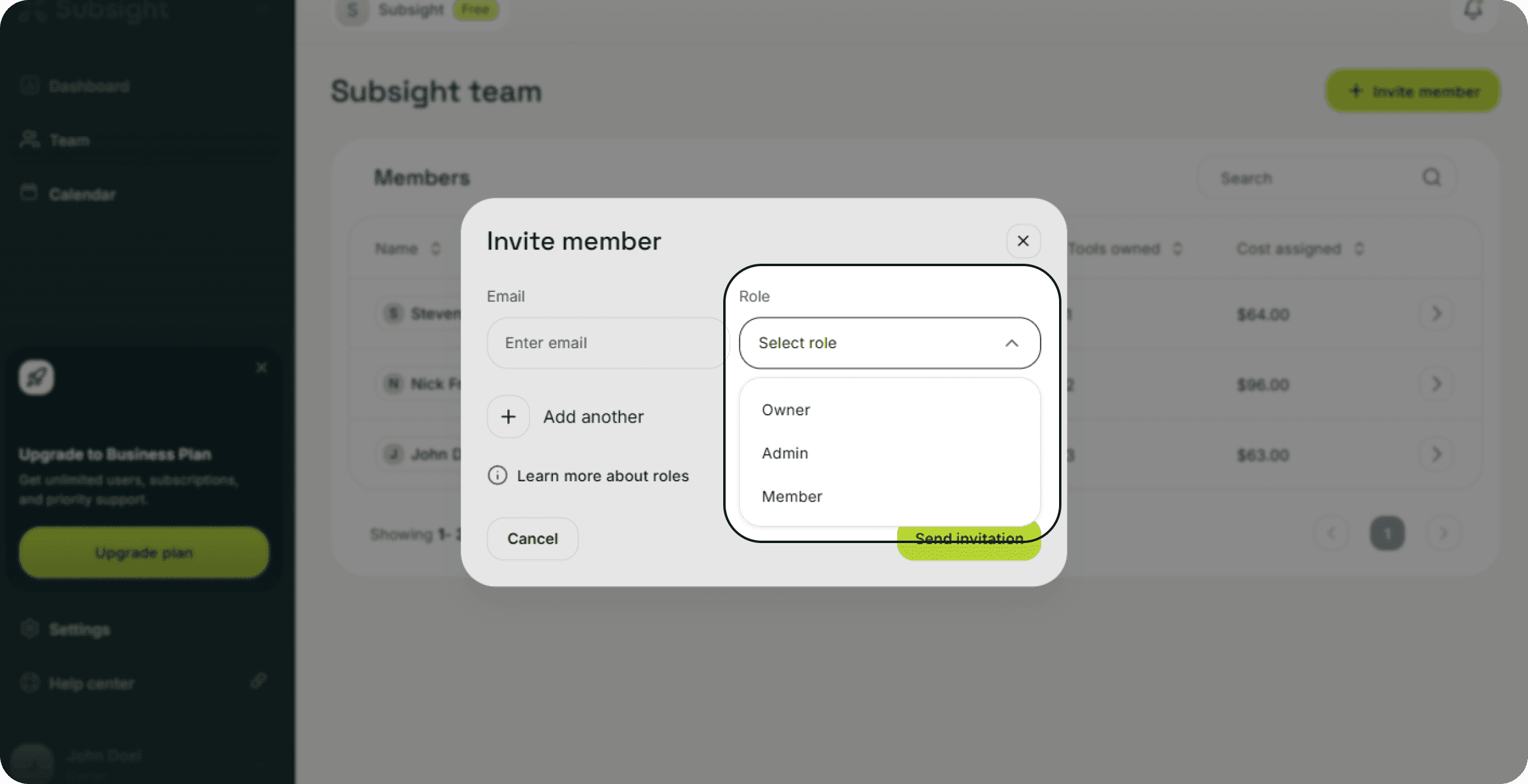
When you invite a new team member, you must assign them one of the following roles via the dropdown menu:
Owner: This role has complete control over the workspace.
Permissions: Full access to all features, team management, and workspace settings.
Billing Authority: Owners are the only users who can manage subscription billing and payment methods for Subsight itself.
Admin: This role is designed for managers or department heads.
Permissions: Full access to add, edit, and remove subscriptions, as well as invite other team members.
Restriction: Admins cannot access or modify the workspace billing settings.
Member: This is the most restricted role, ideal for individual contributors.
Permissions: Members can only view and edit the specific tools that have been assigned to them. They cannot see workspace-wide spending totals or access tools owned by others.
2. Viewing and Changing Roles
You can audit the permission levels of your current team on the Team page. The Role column in the main list displays the current access level for every user.
If you need to adjust a user's access:
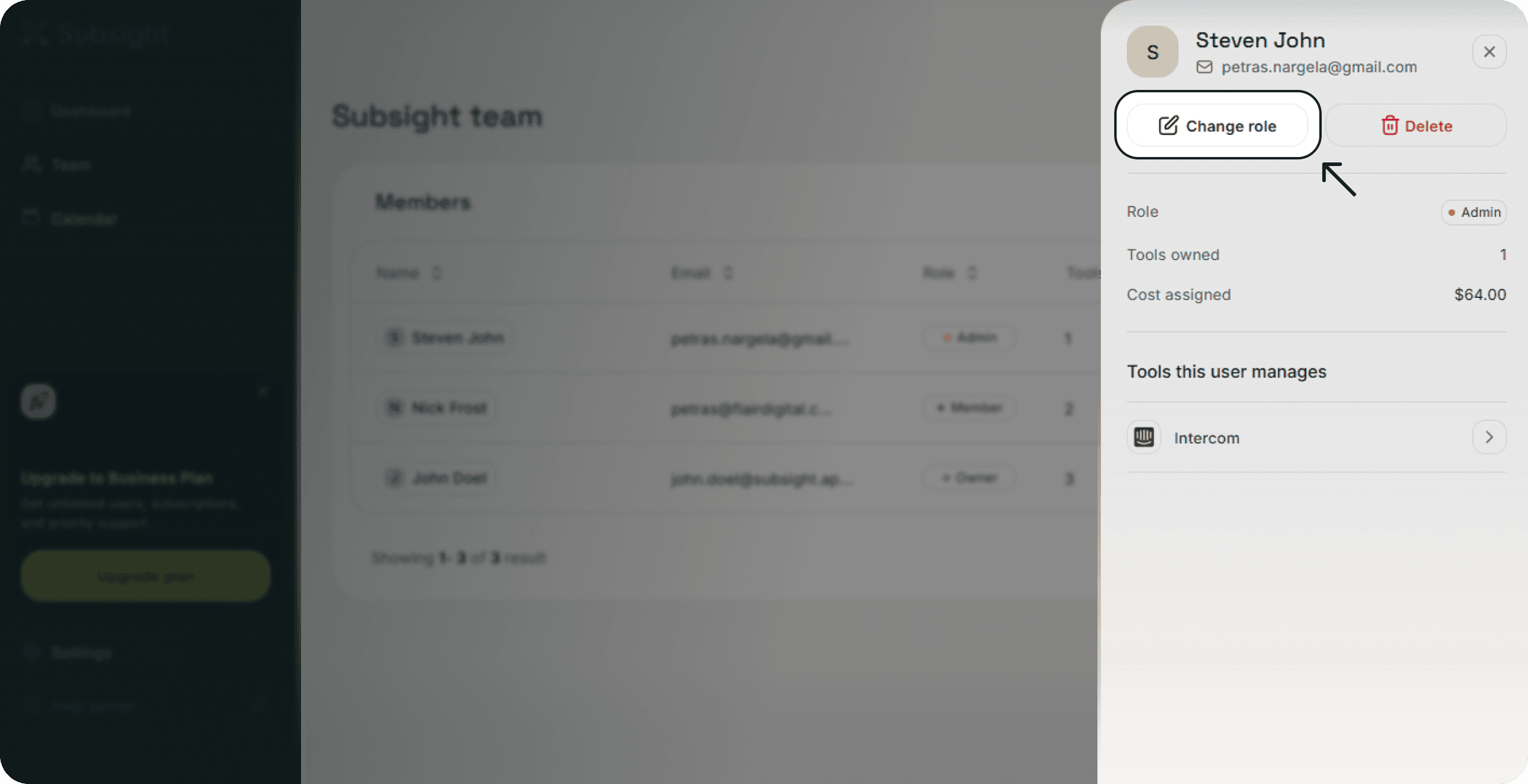
Click on a user's row to open their profile panel.
In this detailed view, you can change the assigned role using the dropdown menu located at the top of the panel.
1. Available Roles
When you invite a new team member, you must assign them one of the following roles via the dropdown menu:
Owner: This role has complete control over the workspace.
Permissions: Full access to all features, team management, and workspace settings.
Billing Authority: Owners are the only users who can manage subscription billing and payment methods for Subsight itself.
Admin: This role is designed for managers or department heads.
Permissions: Full access to add, edit, and remove subscriptions, as well as invite other team members.
Restriction: Admins cannot access or modify the workspace billing settings.
Member: This is the most restricted role, ideal for individual contributors.
Permissions: Members can only view and edit the specific tools that have been assigned to them. They cannot see workspace-wide spending totals or access tools owned by others.
2. Viewing and Changing Roles
You can audit the permission levels of your current team on the Team page. The Role column in the main list displays the current access level for every user.
If you need to adjust a user's access:
Click on a user's row to open their profile panel.
In this detailed view, you can change the assigned role using the dropdown menu located at the top of the panel.


