
Search for articles


Removing Members
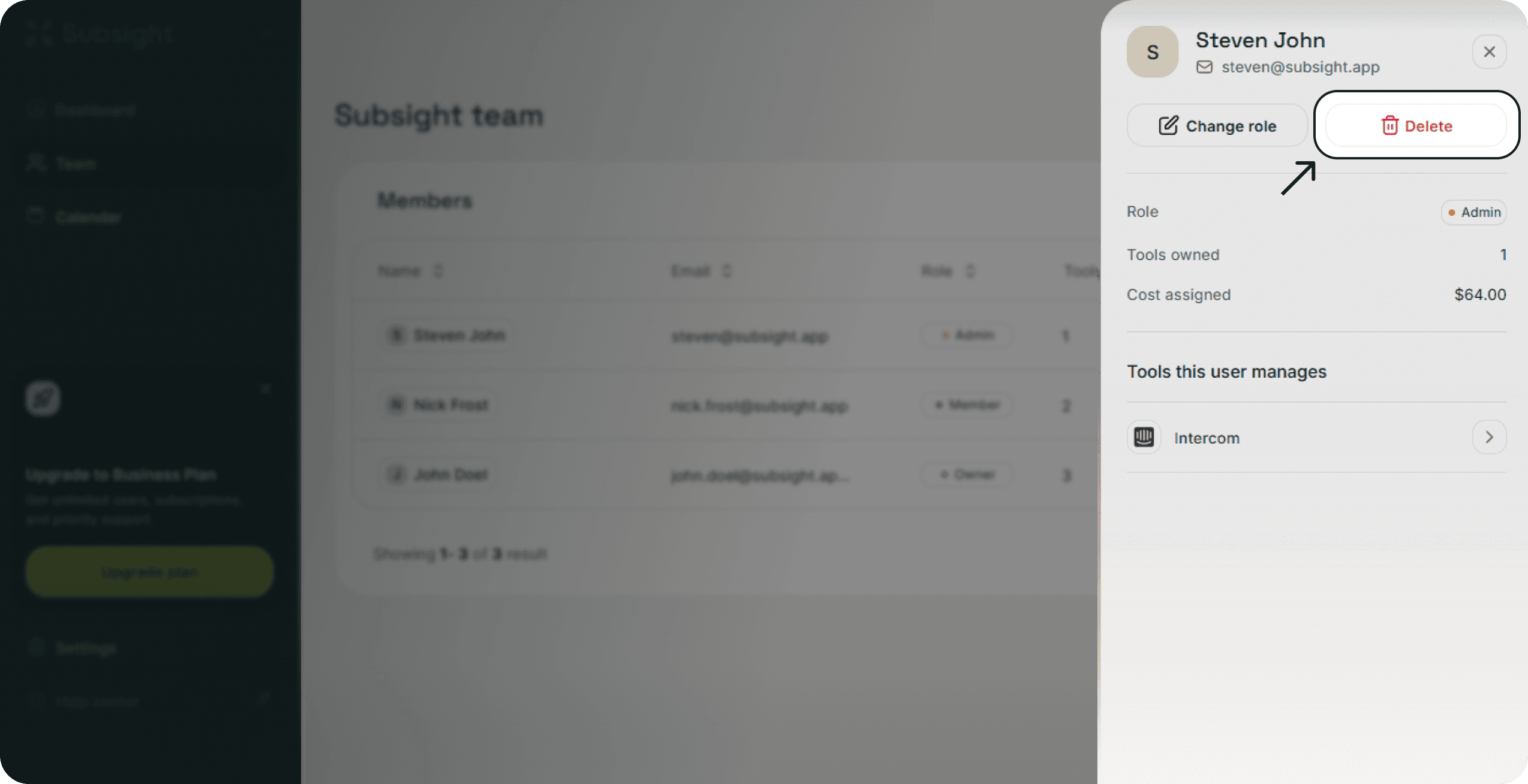
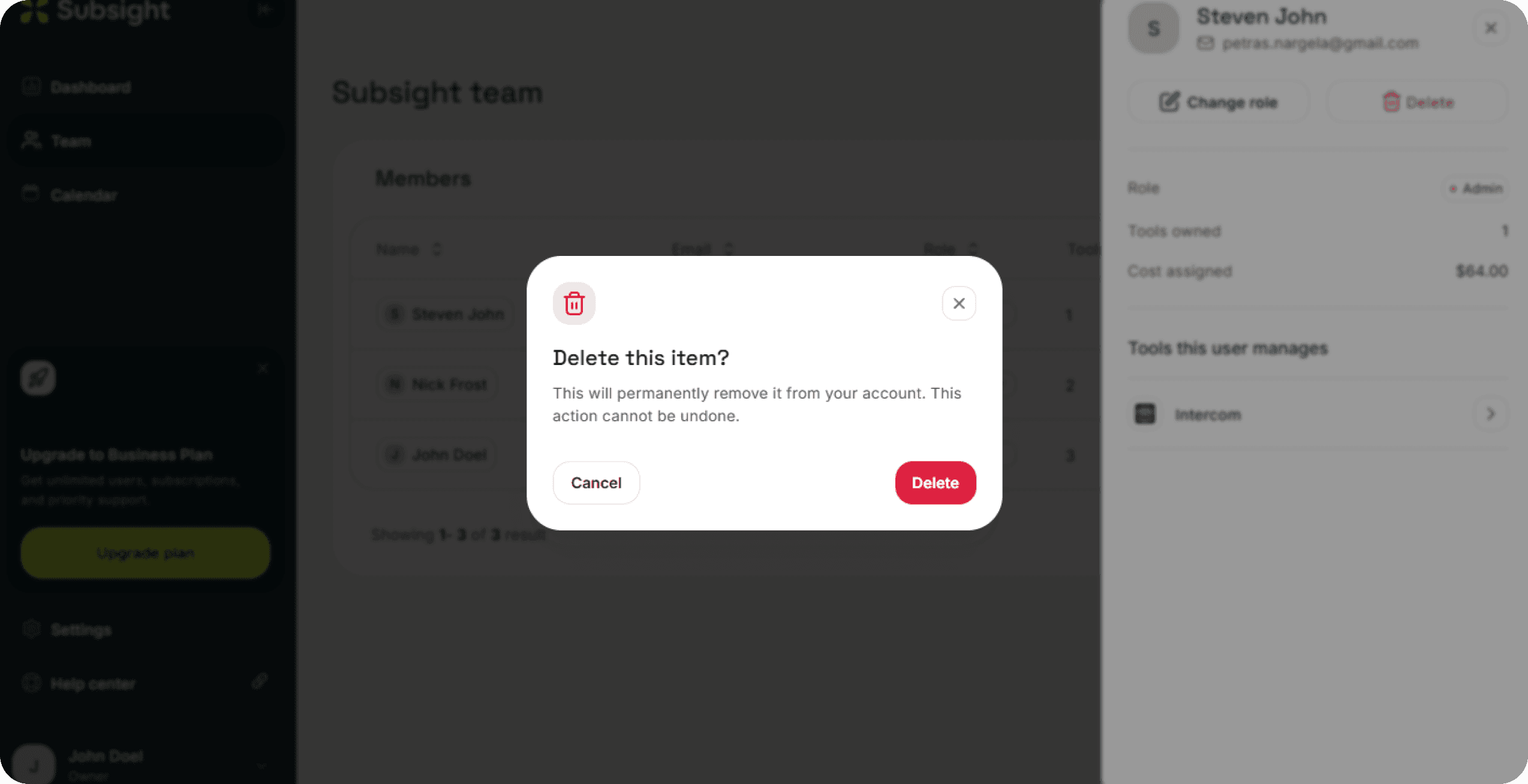
If a team member leaves your organization or changes roles, you can remove them from your workspace to maintain security. This action is permanent and immediate.


Last updated on


Team Management
Search for articles
If a team member leaves your organization or changes roles, you can remove them from your workspace to maintain security. This action is permanent and immediate.
Last updated on
Team Management
