Search for articles

Base Currency Settings

Base Currency Settings

To maintain an accurate overview of your software spend, Subsight allows you to set a Default currency for your entire workspace. This setting ensures that all dashboard metrics are calculated and displayed using a consistent monetary unit.

Written by Petras Nargela

Written by Petras Nargela

Last updated on

1. Accessing Currency Settings

To change your workspace's primary currency:

  1. Navigate to Settings in the bottom-left sidebar.

  2. Click on the Team tab at the top of the page.

  3. Locate the Team settings section.

2. Selecting Your Default Currency

The Default currency dropdown allows you to choose the standard currency for your organization's reporting:

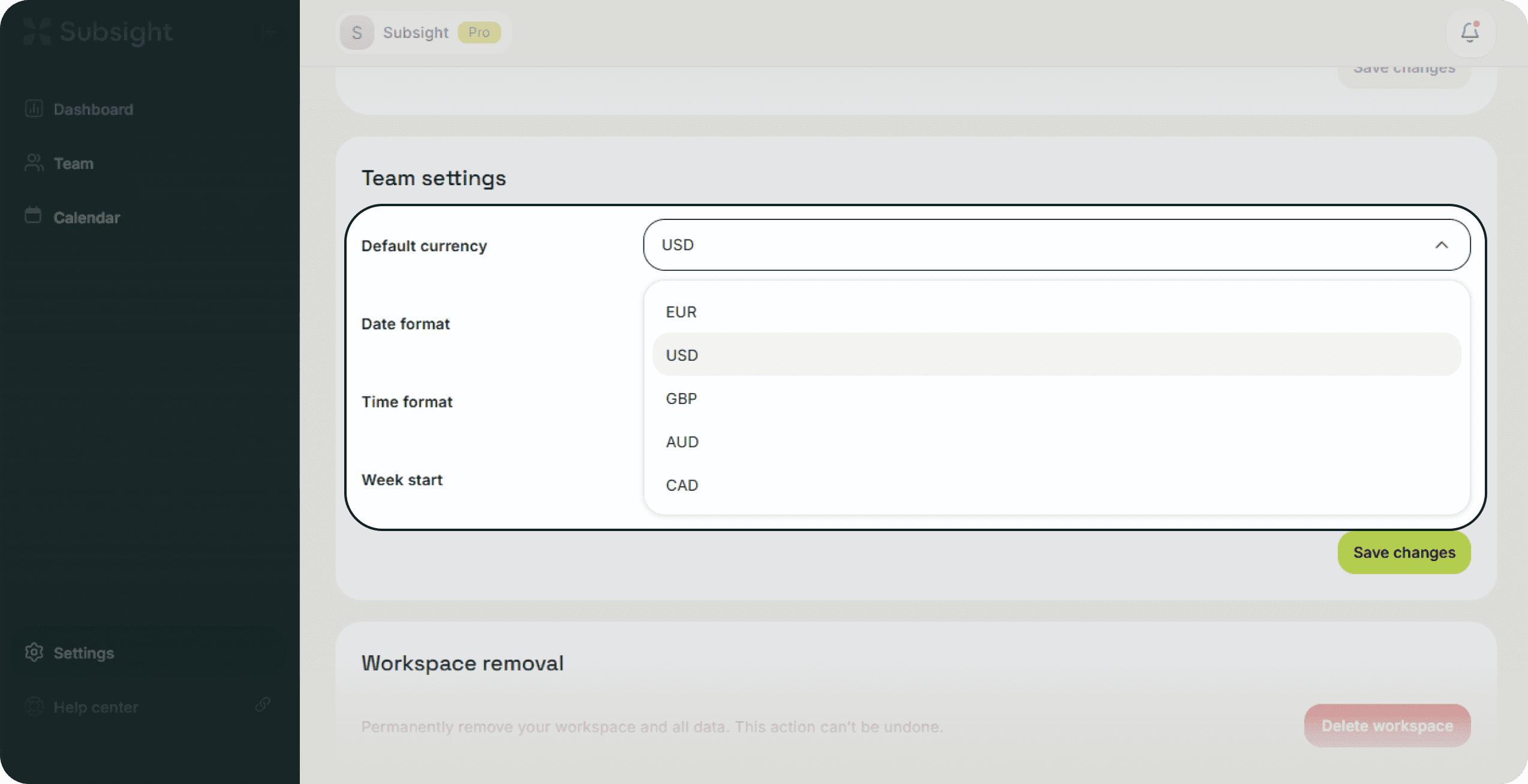
  • Click the dropdown menu to see a list of supported currencies, such as GBP, USD, EUR, AUD, or CAD.

  • Selecting a new currency will update the symbols used for your Monthly spend, Yearly spend, and individual subscription costs across the platform.

Subsight team settings with default currency dropdown showing multiple currency options.

3. Saving Your Preferences

After selecting your preferred currency, click the Save changes button at the bottom of the section to apply the update to the entire workspace.

Note: Changing the default currency will perform a real-time conversion on your existing tool costs based on current exchange rates, ensuring your dashboard totals remain accurate in your new base currency.

1. Accessing Currency Settings

To change your workspace's primary currency:

  1. Navigate to Settings in the bottom-left sidebar.

  2. Click on the Team tab at the top of the page.

  3. Locate the Team settings section.

2. Selecting Your Default Currency

The Default currency dropdown allows you to choose the standard currency for your organization's reporting:

  • Click the dropdown menu to see a list of supported currencies, such as GBP, USD, EUR, AUD, or CAD.

  • Selecting a new currency will update the symbols used for your Monthly spend, Yearly spend, and individual subscription costs across the platform.

Subsight team settings with default currency dropdown showing multiple currency options.

3. Saving Your Preferences

After selecting your preferred currency, click the Save changes button at the bottom of the section to apply the update to the entire workspace.

Note: Changing the default currency will perform a real-time conversion on your existing tool costs based on current exchange rates, ensuring your dashboard totals remain accurate in your new base currency.