Search for articles

Workspace Localization Settings

Workspace Localization Settings

To ensure Subsight fits your local business standards, you can adjust the regional display settings for your entire workspace. These changes affect how all team members view the calendar and date-related data.

Written by Petras Nargela

Written by Petras Nargela

Last updated on

1. Accessing Team Settings

To manage workspace-wide localization:

  1. Navigate to Settings in the bottom-left sidebar.

  2. Click on the Team tab at the top of the page.

2. Customizing Formats

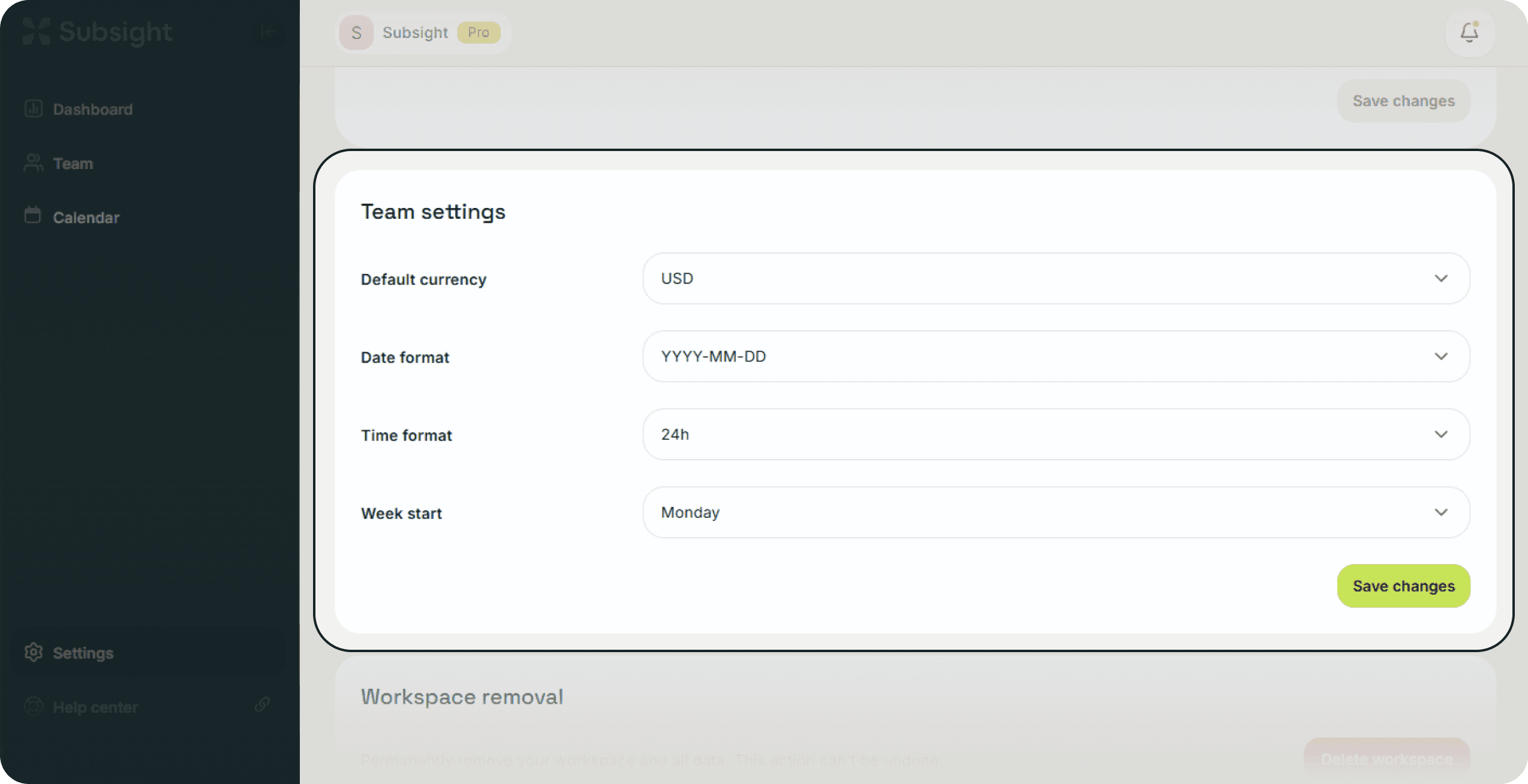
Under the Team settings section, you can modify how information is structured:

  • Date format: Choose how you want renewal dates to appear, such as MM/DD/YYYY or DD/MM/YYYY, to match your region's standard.

  • Time format: Toggle between a 12h or 24h clock for system timestamps.

  • Week start: Customize your calendar view by choosing whether your week begins on Monday or Sunday. This will immediately update the grid layout in the Calendar tab.

Subsight team settings page with date format, time format, and week start customization options.

3. Saving Changes

After making your selections, click the Save changes button at the bottom of the section to apply the new formatting across your workspace.

1. Accessing Team Settings

To manage workspace-wide localization:

  1. Navigate to Settings in the bottom-left sidebar.

  2. Click on the Team tab at the top of the page.

2. Customizing Formats

Under the Team settings section, you can modify how information is structured:

  • Date format: Choose how you want renewal dates to appear, such as MM/DD/YYYY or DD/MM/YYYY, to match your region's standard.

  • Time format: Toggle between a 12h or 24h clock for system timestamps.

  • Week start: Customize your calendar view by choosing whether your week begins on Monday or Sunday. This will immediately update the grid layout in the Calendar tab.

Subsight team settings page with date format, time format, and week start customization options.

3. Saving Changes

After making your selections, click the Save changes button at the bottom of the section to apply the new formatting across your workspace.