
Search for articles


Deleting Your Workspace
If your organization no longer requires Subsight, the workspace owner can delete the entire workspace. This action is the most significant administrative command and results in the total removal of all team data.

Written by Petras Nargela
Written by Petras Nargela

Last updated on
1. Access Team Settings
Only users with the Owner role can perform this action.
Navigate to Settings in the bottom-left sidebar.
Select the Team tab at the top of the page.
2. Initiate Workspace Removal
Scroll to the very bottom of the Team page to find the Workspace removal section. Click the red Delete workspace button.
3. Final Confirmation
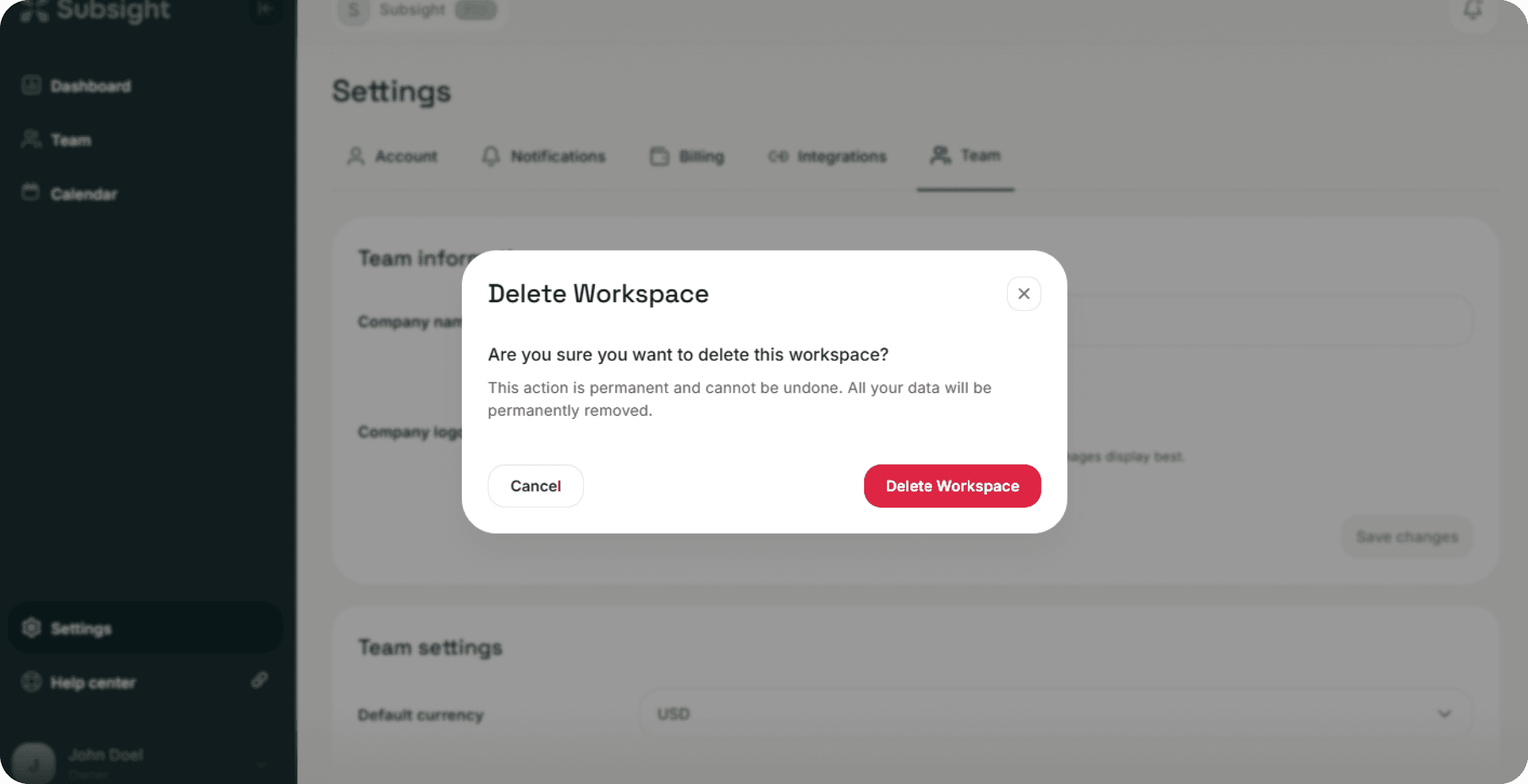
A safety modal will appear to prevent accidental deletion:
Permanent Action: The modal explicitly warns that this action is permanent, cannot be undone, and all workspace data will be permanently removed.
Execution: To finalize the process, click the red Delete Workspace button within the modal.
4. Impact of Deletion
Team Access: All invited members will immediately lose access to the dashboard, calendar, and settings.
Data Erasure: All tracked subscriptions, cost history, owner assignments, and integration settings (like Slack) will be purged from the system.
Billing: Ensure you have reviewed your billing status under the Billing tab before deletion to handle any final administrative requirements.
1. Access Team Settings
Only users with the Owner role can perform this action.
Navigate to Settings in the bottom-left sidebar.
Select the Team tab at the top of the page.
2. Initiate Workspace Removal
Scroll to the very bottom of the Team page to find the Workspace removal section. Click the red Delete workspace button.
3. Final Confirmation
A safety modal will appear to prevent accidental deletion:
Permanent Action: The modal explicitly warns that this action is permanent, cannot be undone, and all workspace data will be permanently removed.
Execution: To finalize the process, click the red Delete Workspace button within the modal.
4. Impact of Deletion
Team Access: All invited members will immediately lose access to the dashboard, calendar, and settings.
Data Erasure: All tracked subscriptions, cost history, owner assignments, and integration settings (like Slack) will be purged from the system.
Billing: Ensure you have reviewed your billing status under the Billing tab before deletion to handle any final administrative requirements.


Account & Security
